
Taking Action on Results
Purpose
Reconciliation is only useful if you can act on what it finds. This article covers the actions available, how to undo them, and why the system sometimes refuses to let you cancel.
Selecting and acting
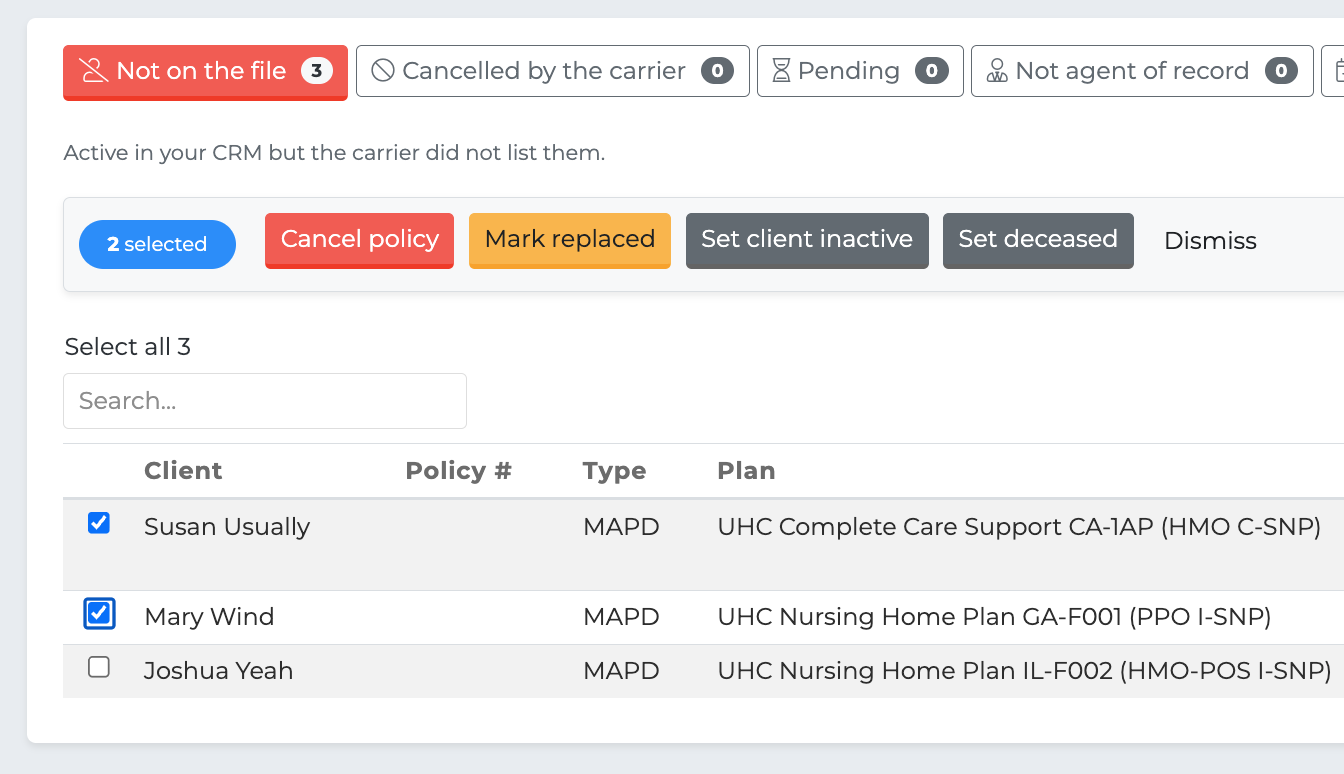
Tick the clients you want to act on. A toolbar appears at the top of the list and stays there as you scroll, so the buttons are always next to the rows driving them.
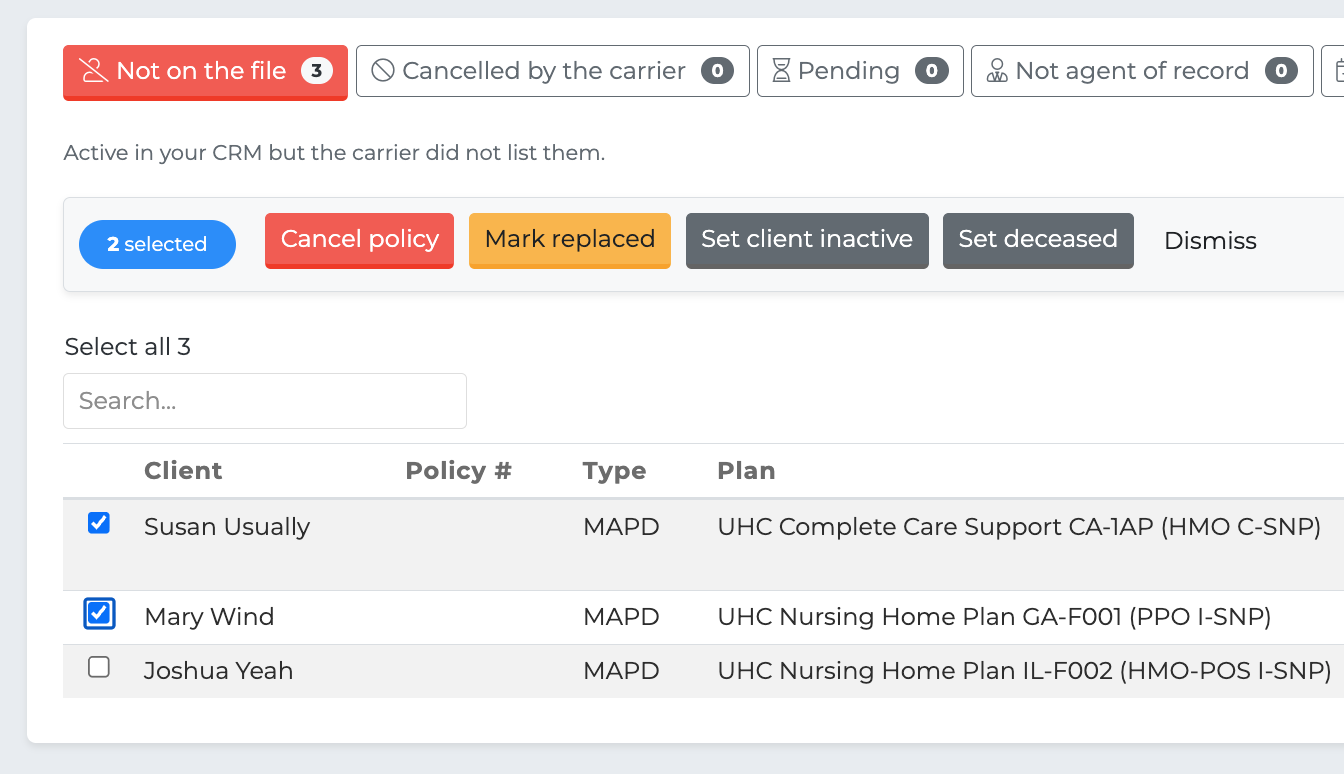
Select all at the top of the list selects everything in the current group. Rows you have already actioned show a tick instead of a checkbox and can't be selected again.
Whatever you choose applies to the entire selection in one go.
The actions
Action | What it does |
|---|---|
Cancel policy | Sets the policy to Canceled and stamps a termination date. Where the carrier gave an end date, that date is used. |
Mark replaced | Sets the policy to Replaced. Use when the client moved to another plan rather than leaving. |
Set client inactive | Sets the client's profile to Inactive Client. The policy is untouched. |
Set deceased | Sets the client's profile to Deceased. The policy is untouched. |
Dismiss | Records that you've looked and decided to leave it alone. Nothing in the CRM changes. |
Dismissals are remembered. A client you dismiss won't be flagged again the next time you reconcile that carrier, so your list gets shorter each quarter rather than showing you the same false alarms.
Undo
Every change made here can be undone. Before anything is written, the previous state of the policy and the client is recorded, so undoing restores exactly what was there — including clearing a termination date that didn't exist before.
Undo is available from the History tab. See History and Audit Trail.
When cancelling is blocked
Cancelling hundreds of policies is the most damaging thing that can go wrong here, so there are guardrails. Each one exists for a specific failure and tells you which.
Not enough of your book matched
If less than 40% of your book with the carrier appears on the file, destructive actions are disabled.
That level of mismatch almost always means the wrong carrier was picked or the file couldn't be read properly — in which case "missing" means nothing. Check the carrier first.
If you know the file is genuinely a partial report and the results are correct, tick:
☑ I've checked this is the right carrier and the file is correct — let me act on it anyway
Dismiss always stays available, because it records a decision without changing a policy.
Nothing matched at all
If none of the file matched your book, there is no override. In that situation every policy is listed as missing purely because nothing matched, so the list is your entire book restated rather than a finding — there's nothing to act on. You'll be offered a carrier retry instead.
The file is too small to conclude anything
A file with very few rows that also covers little of your book can't support the conclusion that anyone dropped off. Cancellations the carrier explicitly reported are still actionable, since those are stated rather than inferred.
A small file that covers your whole book is fine — 40 rows accounting for all 40 of your policies is your complete book of business.
You're changing a lot at once
Changing more than a quarter of your book with a carrier — and at least ten policies — asks for confirmation first.
This will change 12 of your 20 policies with this carrier. You can undo it afterwards.
Small books don't trigger this. One policy out of three is technically a third of your book, but it isn't the kind of sweep the check exists for.
Sending the file to the import team
If the results show people on the carrier's file who aren't in your active book, you'll see a banner above the results with a Send to import queue button.
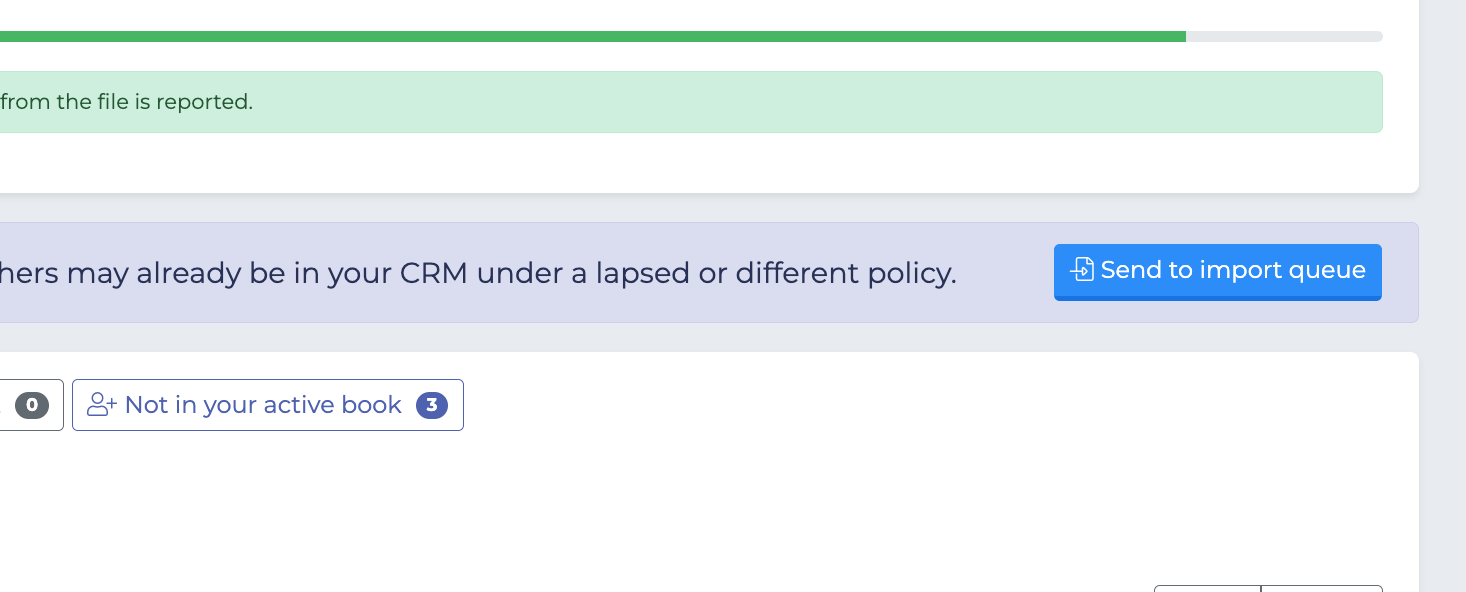
This hands the file to the team who process imports. It does not create anything in your CRM — the import process does that, with its own duplicate screening, which is why the whole file is passed over rather than a list of names. Some of those people will already be in your CRM, and the importer is built to work that out.
Your reconciliation is unaffected, and the file appears in the import queue named after the carrier.
Exporting the results
Each results group can be exported to CSV or Excel using the buttons above the table, which is useful for working a list offline or sharing it with an assistant.