
Running a Reconciliation
Purpose
This article walks through reconciling a carrier file from start to results. The whole process is three steps: choose a file, confirm the carrier, read the results.
Step 1: Choose a file
Open Reconcile Book from your account menu. You have two options.
Drop a new file
Drag a carrier's book of business report onto the upload area, or click it to browse.
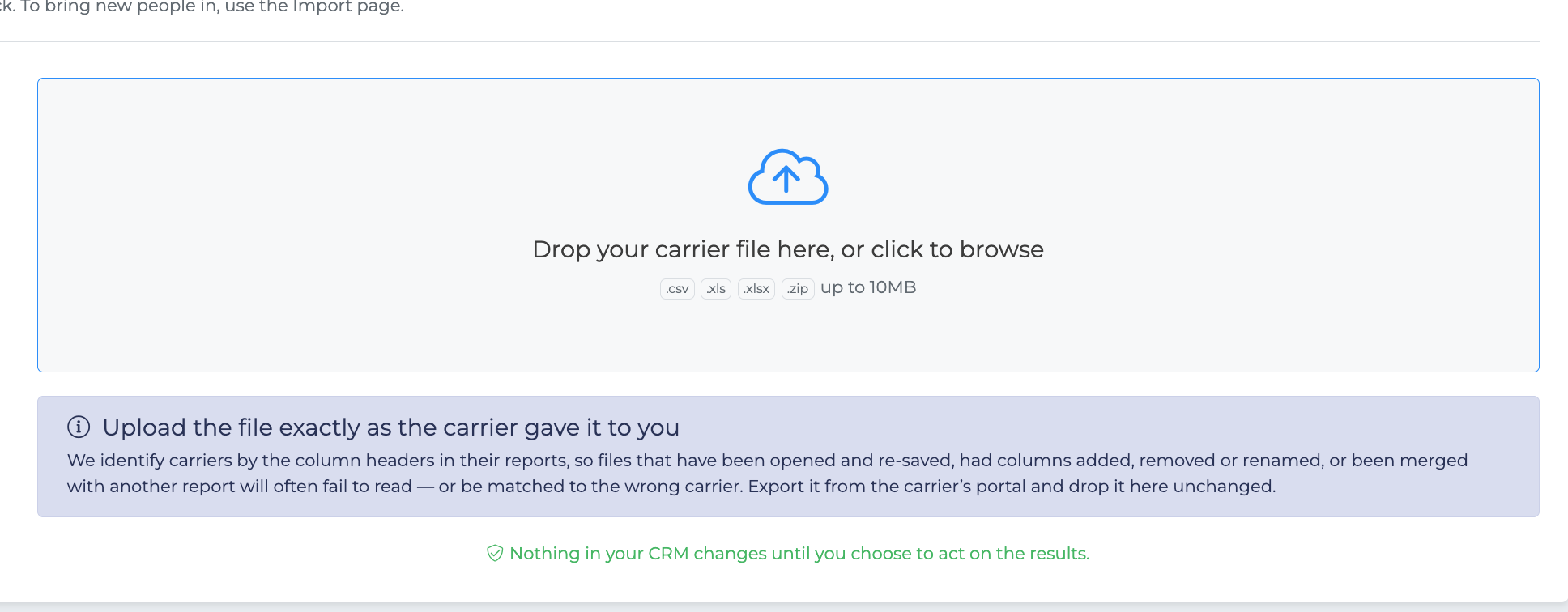
Accepted formats are .csv, .xls, .xlsx up to 10MB. Some carriers deliver their report inside a zip — that is handled for you, no need to unzip it first.
Re-use a file you've already uploaded
If you have uploaded carrier files for importing in the past, the Ready to reconcile column lists them so you don't have to fetch them from the carrier portal again.
This list only shows files that are worth your time:
The most recent file per carrier, since an older export of the same carrier is strictly worse to reconcile against.
Only files you haven't already reconciled. Once a file has been through, it drops off the list and lives on the History tab instead.
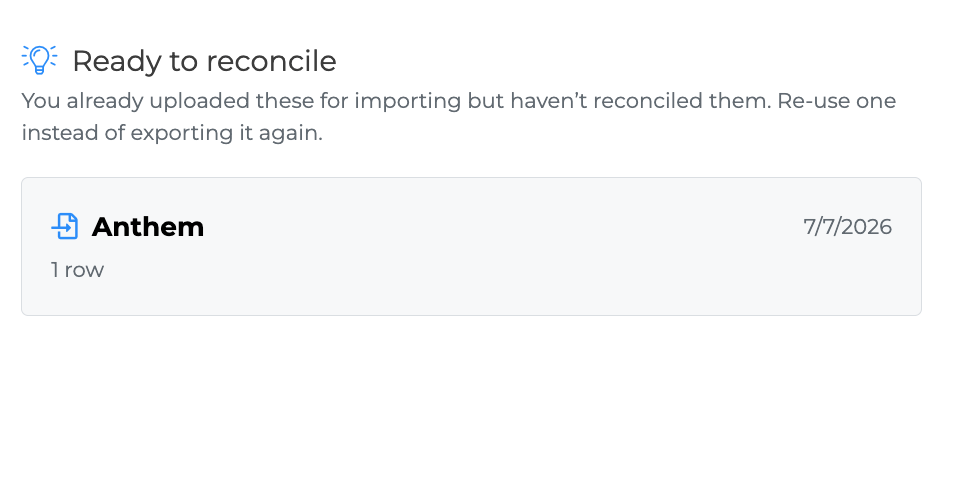
If you have nothing eligible, the column doesn't appear at all.
Export the file exactly as the carrier gave it to you
This is the single most common reason a reconciliation fails, so it's worth being clear about.
The CRM works out which carrier a report came from by looking at its column headers. Every carrier lays their report out differently, and those layouts are how the file is recognized and read.
That means a file will often fail — or be attributed to the wrong carrier — if it has been:
opened in Excel and re-saved
had columns added, removed, renamed or reordered
had a title row or notes added above the headers
merged with another report
filtered down and saved as a new file
Download the report from the carrier's portal and upload it unchanged. If you need to look at it first, take a copy.
Step 2: Confirm the carrier
Once the file has been read, you'll be asked to confirm which carrier it came from. Getting this right matters more than anything else on the page — comparing against the wrong carrier produces a confident-looking list of clients who haven't gone anywhere.
You'll see one of three things.
We recognized the carrier
Is this the right carrier?
We detected this as an Aetna file.
Along with two facts worth checking before you say yes:
How many people were read from the file. If that number looks wrong for the carrier, you may have grabbed the wrong export.
Whether the file includes a policy status column. Roughly a third of carriers don't publish one. Without it, the comparison can only tell you who is missing from the file — it can't see cancellations the carrier has already recorded.
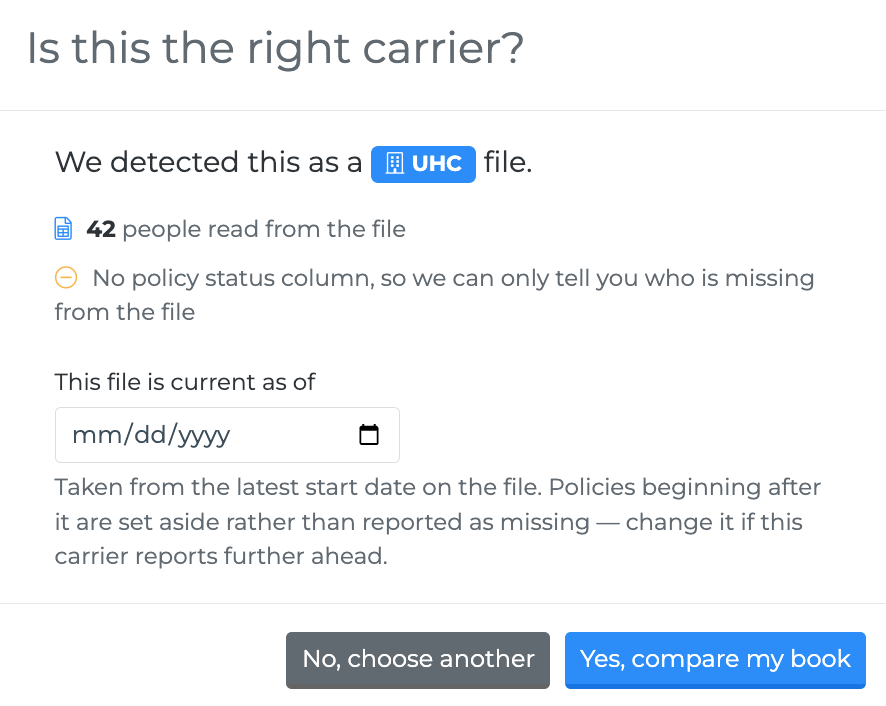
Choose Yes, compare my book to run the comparison, or No, choose another to pick a different carrier.
The file could be from more than one carrier
Some carriers use very similar report layouts. When the file is ambiguous, you'll be shown the likely candidates with a percentage showing how well each one's expected columns matched, and asked to pick.
If none of them are right, choose None of these — show all carriers.
We couldn't recognize it at all
Sorry — we couldn't match this file to a carrier we know.
Pick the carrier from the list and the file will be read again with that carrier's layout. If it still fails, the file has most likely been modified since it was exported.
Step 3: The as-of date
The confirmation step also shows the date the file is current as of. This is taken from the latest policy start date anywhere in the report, not from today's date.
It exists so that policies which start after the file was produced aren't reported as missing — they couldn't have been on it.
The date adapts to the carrier automatically. A report that lists future-dated business will produce a later date; one that stops at today will produce today. You can change it if you know the carrier reports further ahead than the file suggests, and the comparison will run again.
Step 4: Results
Once the comparison runs you'll land on the results, which are covered in Understanding Your Results.
To reconcile a second carrier, use Upload another file at the top of the page. That clears the current results and starts fresh — files are never combined.