
Running a Questionnaire from a Profile
You don't have to wait for a client to fill out a portal — you can run a questionnaire directly from any profile as an agent-driven needs analysis. This is the way to use questionnaires on the phone, in person, or anywhere you're capturing answers yourself.
How to Run One
Open the client's profile.
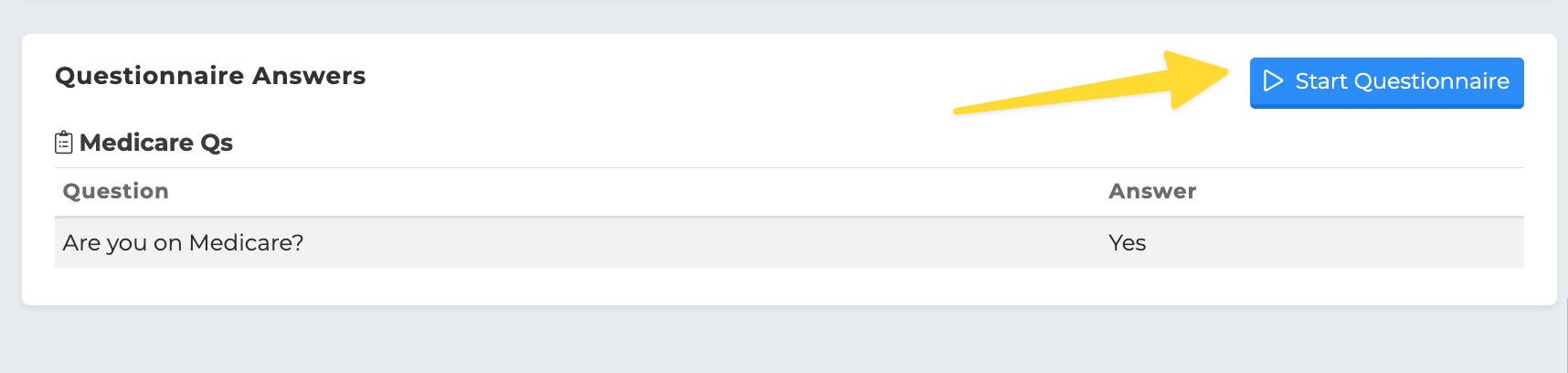
Scroll to the Questionnaire Answers card.
Click Start Questionnaire.
If you have more than one questionnaire, a Pick a Questionnaire picker appears. Choose the one you want to run.
If you have only one, the runner opens immediately.
If you have none, you'll see a prompt directing you to Client Portals → Questionnaires to build one first.
In the Runner
The runner shows one question at a time:
Type the answer (or pick / click Yes/No / pick a date) and click Next.
Use Go Back to revisit a previous question.
Required questions are marked with *\ Required** and can't be skipped.
Click Cancel at any time to abandon (no answers save until you complete).
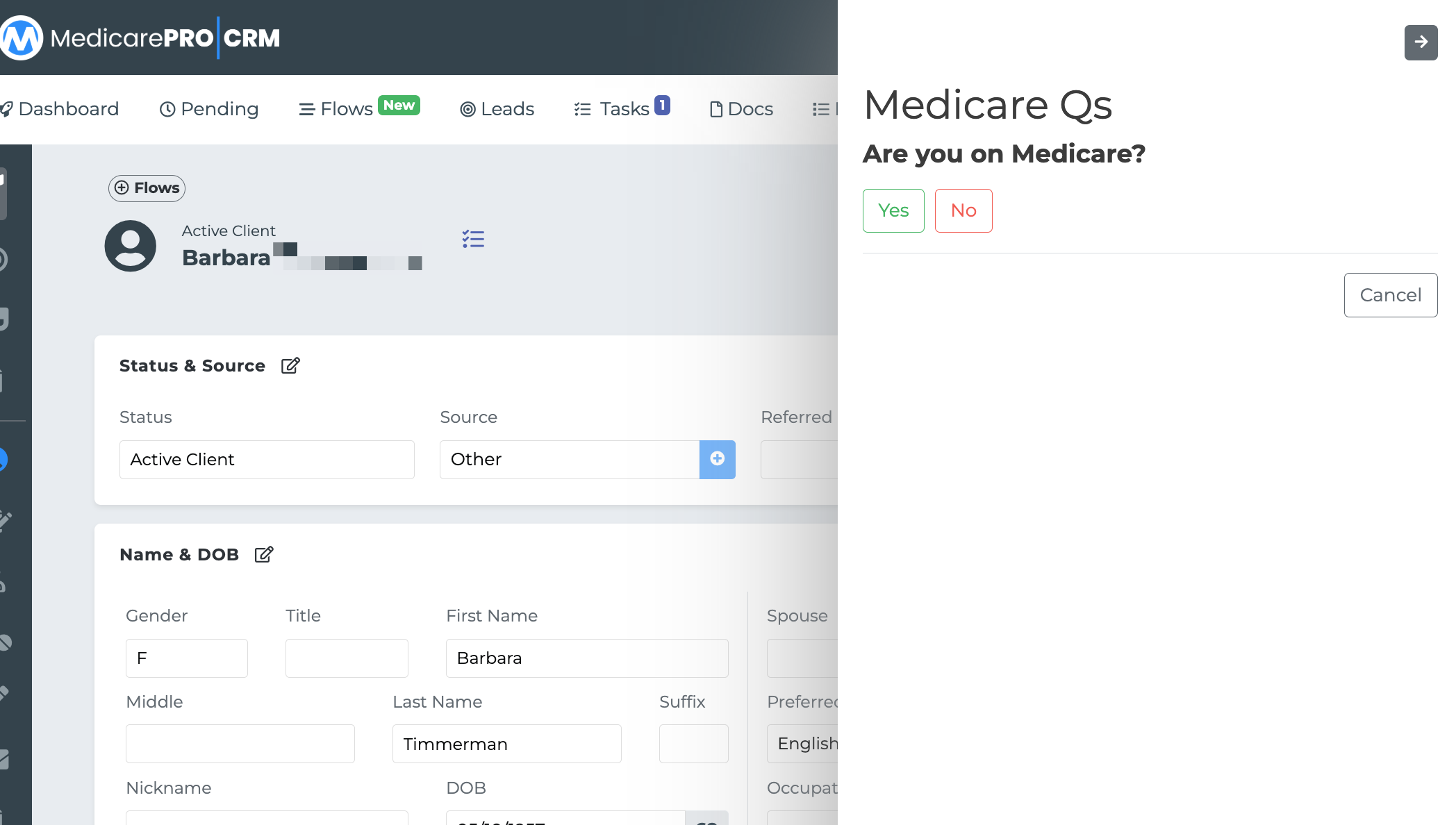
When you reach the end you'll see Questionnaire complete — Answers have been saved to the profile. Click Done to close.
Re-Running on the Same Profile
Yes, you can. Click Start Questionnaire again. The runner doesn't pre-fill old answers — you start from question one. Submitting again updates existing answers for that questionnaire on that profile (one record per question, per individual).
This is handy for annual re-qualifications or refresh calls.
Standalone vs. Portal Use
Both paths save answers to the same place — the profile's Questionnaire Answers panel. The only difference is who's typing:
You're using… | Who answers |
|---|---|
Profile Start Questionnaire | The agent (or staff), live with the client |
Client portal | The client themselves, on their own time |