
Tasks — Viewing an Individual's Mini Profile
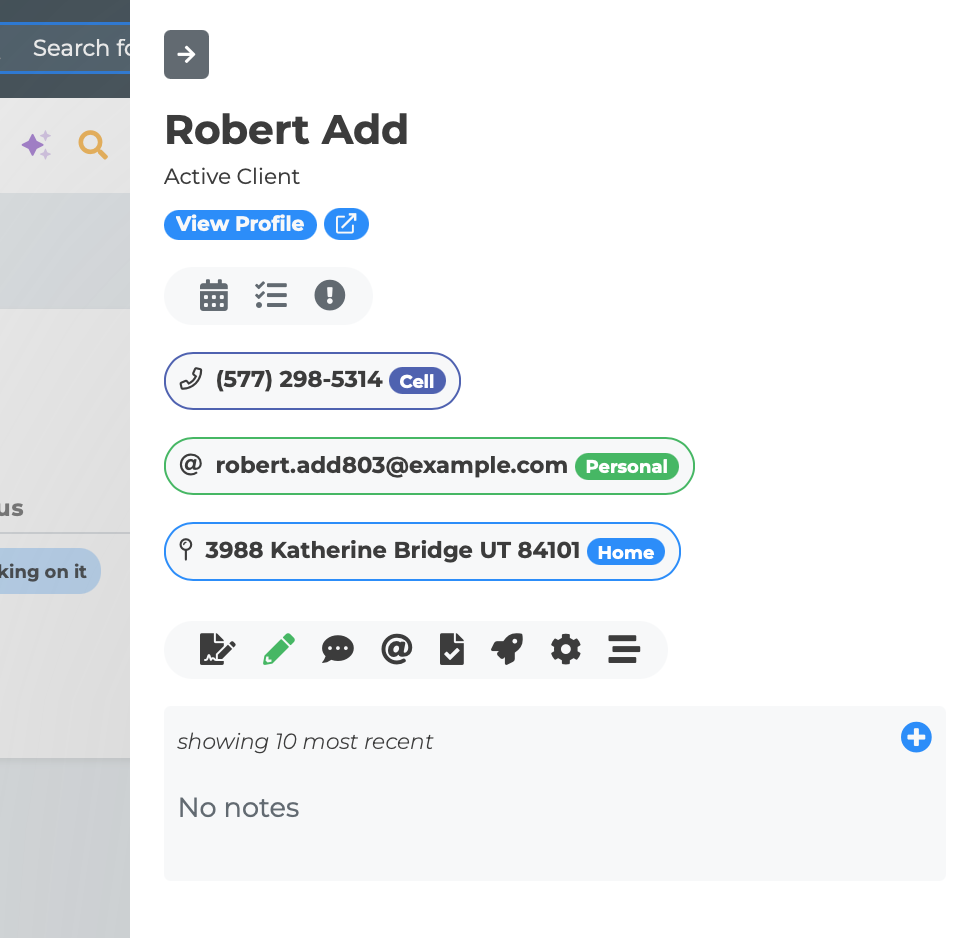
When a task is linked to an individual, you can view that person's profile information directly from the Tasks page without navigating away. The Mini Profile panel slides in from the right side and gives you access to contact details, policies, notes, messaging, and more.
Opening the Mini Profile
There are two ways to open the Mini Profile:
From the task table — In the "Linked to" column, the individual's name appears as a green-bordered pill badge with a person icon. Click it to open their Mini Profile.
From the task editor — In the "Link to Profile" section, the linked individual's name appears as the same green badge. Click it to open the Mini Profile.
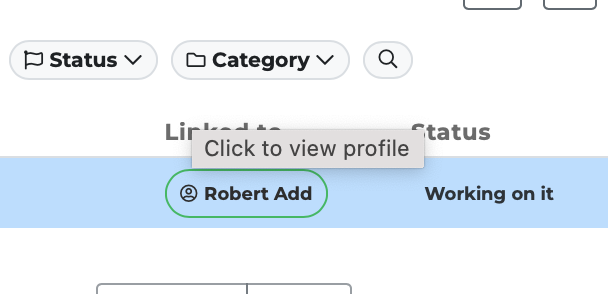
Where It Appears
The Mini Profile opens as a slide-in panel from the right edge of the screen. It overlays the current page, so you stay on the Tasks page and can close it at any time to return to where you were.
The panel automatically resizes to be wider when you open sections that need more space, like Email or Enrollment.
Click the close button (arrow icon) at the top of the panel to dismiss it.
Working with the Mini Profile and Tasks Together
The Mini Profile is designed to complement your task workflow. Common patterns include:
Open a task, read the comments, then click the linked individual's name to see their policies or contact info before taking action.
Use the SMS or Email section to reach out to the individual, then go back to the task and add a comment documenting what you did.
Check the Notes section to see recent notes about the individual for context before working on the task.
Use "Make Task" from the Mini Profile to create a follow-up task linked to the same individual.
Tips
The Mini Profile loads the individual's full data including addresses, phones, emails, policies, and flags — so you have everything you need without visiting the full profile page.
Use the "Open in new window" link if you need the full profile page side by side with the Tasks page.
The panel remembers which section you last viewed, making it easy to pick up where you left off.
Notes in the Mini Profile show the 10 most recent entries. For the complete history, use the "View Profile" link to go to the full profile page.