
Tasks — Bulk Actions
Bulk actions let you select multiple tasks and apply changes to all of them at once. This saves time when you need to update several tasks with the same status, priority, category, or assignment.
Entering Bulk Select Mode
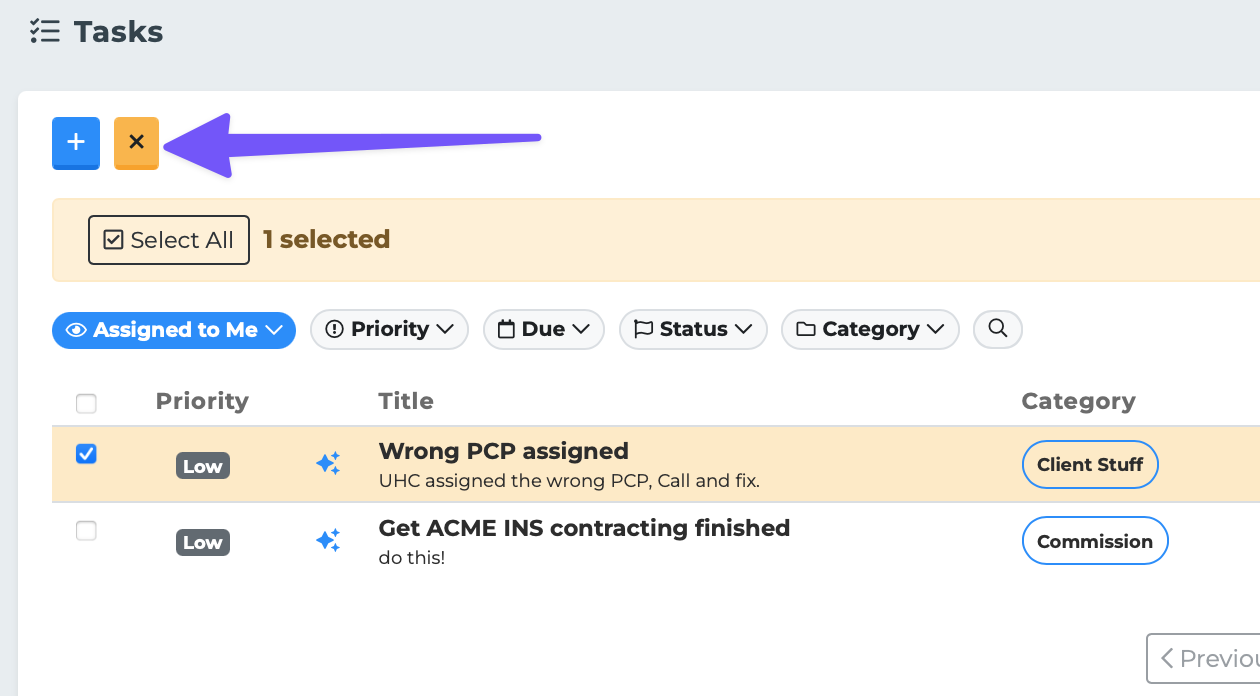
Click the checkbox icon in the toolbar.
The page enters Bulk Select mode. A yellow notification bar appears at the top of the task list.
Checkboxes appear on each task row (in List View) or task card (in Card View).
Selecting Tasks
Once in Bulk Select mode:
Click the checkbox on individual tasks to select or deselect them.
Click "Select All" to select every task on the current page.
Click "Deselect All" to clear your selection.
The bar shows a count of how many tasks are currently selected (e.g., "5 selected").
Available Bulk Actions
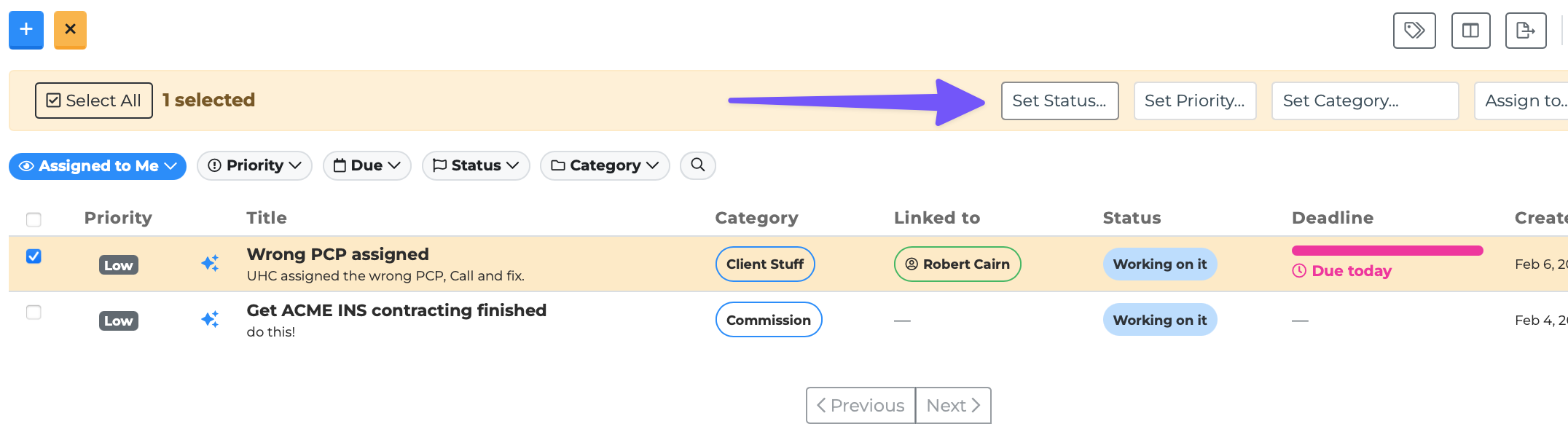
With one or more tasks selected, the following actions are available in the yellow bar:
Set Status — A dropdown that lets you change the status of all selected tasks. Options include:
Created
In Progress
On Hold
Completed
Canceled
Set Priority — A dropdown that lets you change the priority of all selected tasks. Options include:
High
Medium
Low
Set Category — A dropdown showing all available categories. Select one to assign that category to all selected tasks.
Assign to — A dropdown listing all team members. Your own name appears with "(Me)" next to it. Select a person to reassign all selected tasks to them.
Exiting Bulk Select Mode
Click the "Cancel" button in the yellow bar to deselect all tasks and exit Bulk Select mode. The checkboxes disappear and the page returns to its normal state.
You can also click the checkbox icon in the toolbar again to exit.
Tips
Use bulk actions after filtering your task list. For example, filter to a specific category, select all, then change the status to "Completed" to close out a batch of finished work.
Bulk assign is useful when redistributing tasks to a different team member.
The Set Priority action is helpful when triaging — filter to new tasks and set their priorities in one step.
Always double-check the selected count before applying a bulk action to make sure you are changing the right tasks.