
Tasks — Filters and Search
The Tasks page provides several filters and a search bar to help you find specific tasks quickly. Filters appear as pill-shaped dropdowns in a horizontal row below the toolbar.
View Filter
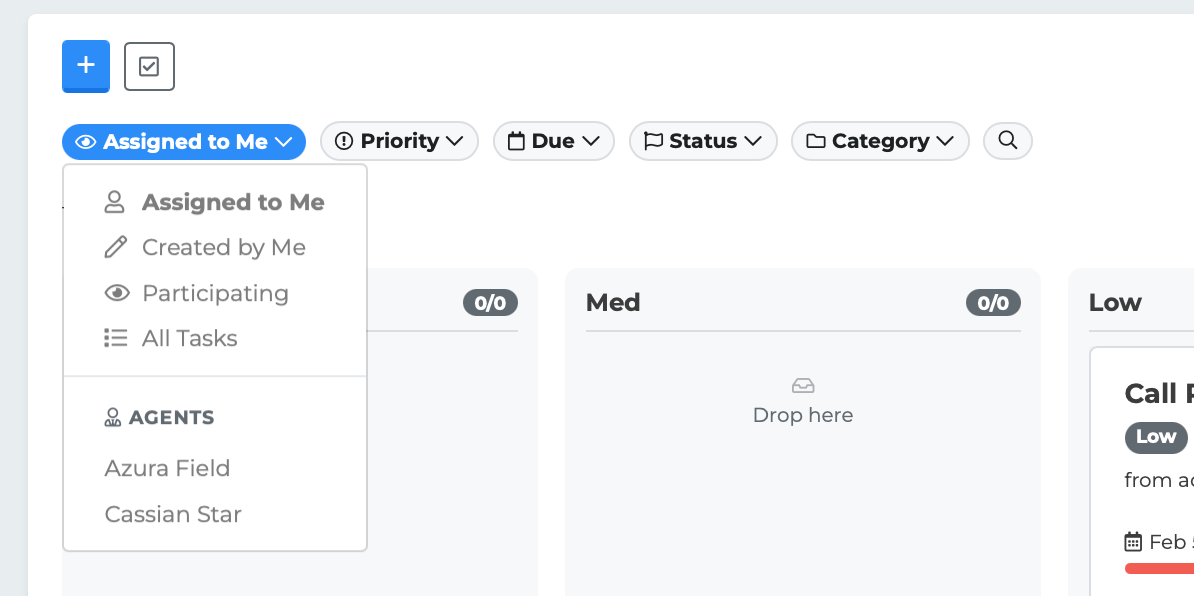
The View filter controls whose tasks you see. Click the eye icon pill to open the dropdown:
Assigned to Me — Shows only tasks where you are the assignee. This is the default view.
Created by Me — Shows tasks you created, regardless of who they are assigned to.
Participating — Shows tasks where you are a participant in any role (creator, assignee, collaborator, or watcher).
All Tasks — Shows all tasks across the organization.
Below these options, a divider separates two additional sections:
Agents — Lists individual agents on your team. Select one to see tasks assigned to that specific agent.
Staff — Lists staff members. Select one to see tasks assigned to that staff member.
Priority Filter
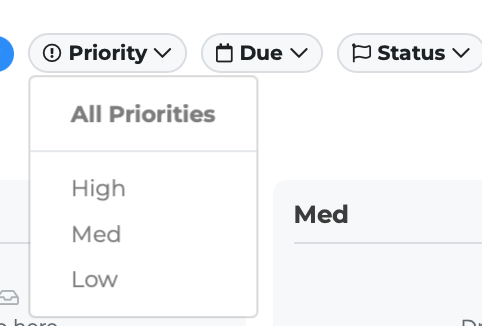
Click the exclamation circle pill to filter by priority:
All Priorities — Shows tasks of any priority (default).
High — Shows only high-priority tasks. Indicated by a red dot.
Medium — Shows only medium-priority tasks. Indicated by a yellow dot.
Low — Shows only low-priority tasks. Indicated by a blue dot.
Deadline Filter
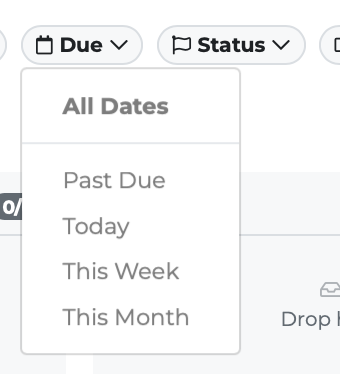
Click the calendar pill to filter by deadline:
All Dates — Shows tasks with any deadline or no deadline (default).
Past Due — Shows only tasks where the deadline has passed. Indicated by a red dot.
Today — Shows only tasks due today. Indicated by a yellow dot.
This Week — Shows tasks due within the current week. Indicated by a blue dot.
This Month — Shows tasks due within the current month. Indicated by a gray dot.
Status Filter
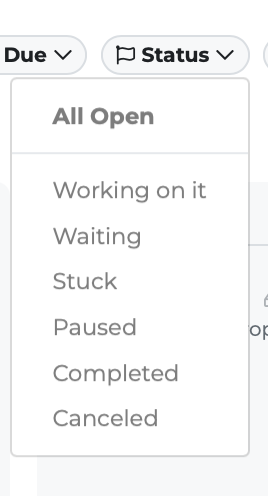
Click the flag pill to filter by status:
All Open — Shows all tasks that are not completed or canceled (default).
Working on it — Blue dot.
Waiting on Reply — Yellow dot.
Stuck — Red dot.
Paused — Gray dot.
Completed — Green dot. Selecting this switches the view to show closed tasks.
Canceled — Dark dot. Selecting this also switches to closed tasks.
Category Filter
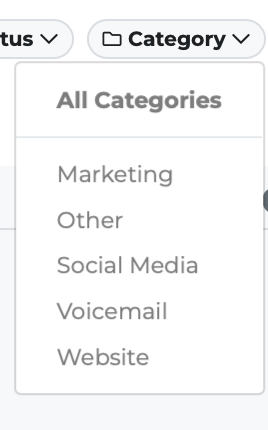
Click the folder pill to filter by category:
All Categories — Shows tasks in any category (default).
A list of all active categories appears below. Select one to show only tasks in that category.
The list includes both default categories and any custom categories your team has created.
Search Bar
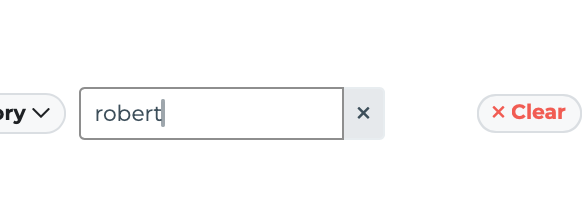
Click the magnifying glass icon on the right side of the filter row to open the search bar. Type a keyword to search across task titles. Results update as you type (with a short delay for performance).
Click the X button to close the search bar and clear the search.
Clearing All Filters
To reset all filters back to their defaults, click the "Clear" button at the end of the filter row. It appears in red text with an X icon. This resets the view to "Assigned to Me" with no priority, deadline, status, or category filters applied, and clears the search.
Filter Persistence
Your active filters are reflected in the page URL. This means you can bookmark a filtered view or share the URL with a colleague, and they will see the same filtered results.
When you navigate away and come back, the filters return to the defaults (Assigned to Me, All Open).
Mobile Behavior
On small screens (phones), the individual filter pills are hidden behind a single "Filters" button. Tap it to reveal the full set of filter options.
Tips
Combine filters to narrow your view. For example, set Priority to "High" and Deadline to "Past Due" to see your most urgent overdue tasks.
Use the View filter to check on a specific team member's workload.
The search bar is useful for finding tasks by name when you know part of the title.
Share a filtered URL with a colleague to point them to a specific set of tasks.