
Tasks — Column Configuration
In List View, you can choose which columns appear in the task table. This article covers the available columns and how to customize your view.
Opening Column Settings
Make sure you are in List View (click the list icon in the toolbar if needed).
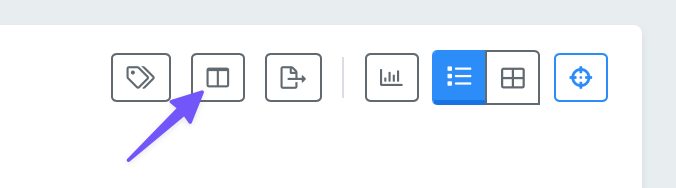
Click the columns icon in the toolbar.
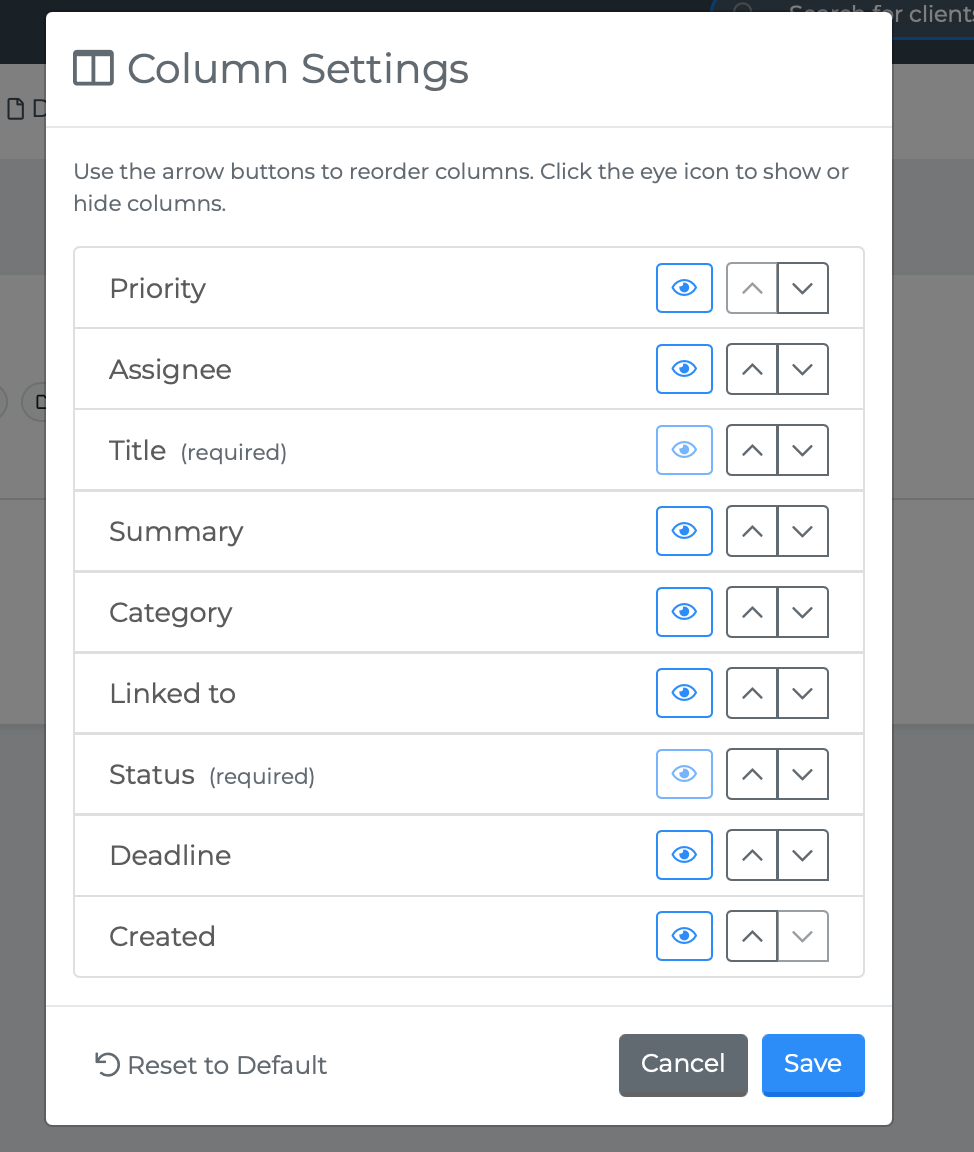
The Column Settings panel opens, showing all available columns with toggles.
Column Settings is only available in List View. It does not appear when you are in Card View.
Available Columns
The task table supports nine columns:
Priority — The task's priority level (High, Medium, or Low). Sortable.
Title — The task's name. Sortable. This column is always visible and cannot be hidden.
Summary — A brief preview of the task description. Not sortable. Hidden on small screens.
Category — The task's category. Sortable. Hidden automatically when the editor panel is open (compact mode) and on smaller screens.
Linked to — The individual the task is linked to, if any. Not sortable.
Status — The task's current status. Sortable. This column is always visible and cannot be hidden.
Deadline — The task's due date. Sortable.
Created — When the task was created. Sortable. Hidden automatically when the editor panel is open (compact mode) and on smaller screens.
Assignee — The person assigned to the task. Not sortable. Hidden on small screens.
Required Columns
Two columns are always visible and cannot be turned off:
Title
Status
These are essential for identifying and tracking tasks.
Compact Mode
When the Task Editor panel is open on the right side of the page, the table switches to compact mode to save horizontal space. In compact mode, the Category and Created columns are hidden automatically, even if you have them enabled.
Once you close the editor panel, those columns reappear.
Responsive Behavior
On smaller screens (tablets and phones), some columns are hidden automatically to keep the table readable:
Summary, Assignee: Hidden on small screens
Category, Created: Hidden on medium and smaller screens
This happens regardless of your column settings.
Sorting
Click any sortable column header to sort the table by that column. An arrow indicates the current sort direction. Click again to reverse it.
Sortable columns: Priority, Title, Category, Status, Deadline, Created.
The default sort is by Deadline in ascending order (earliest deadline first).
Saving Preferences
Your column visibility preferences are saved automatically and persist between sessions. The next time you visit the Tasks page, your columns will be configured the same way you left them.