Tasks — Category Configuration
Categories help you organize tasks by type of work. The system comes with a set of default categories, and you can create your own custom categories as well.
Default Categories
The system includes a set of built-in categories that cover common task types. These default categories are available to everyone in your organization.
Default categories cannot be deleted, but they can be hidden if your team does not use them.
Custom Categories
You can create custom categories to match your team's specific workflows.
There are two ways to create a custom category:
From the Manage Categories modal:
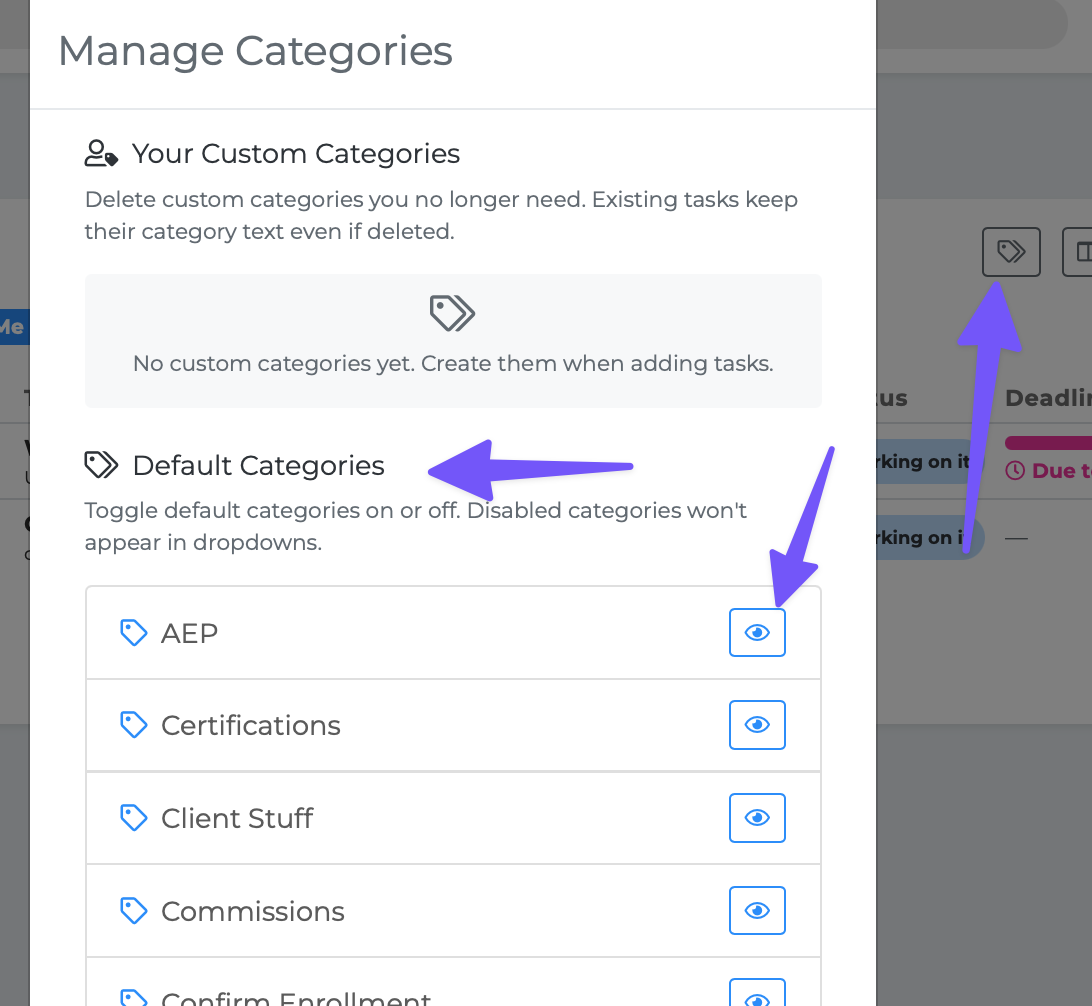
Click the tags icon in the Tasks toolbar to open the Manage Categories modal.
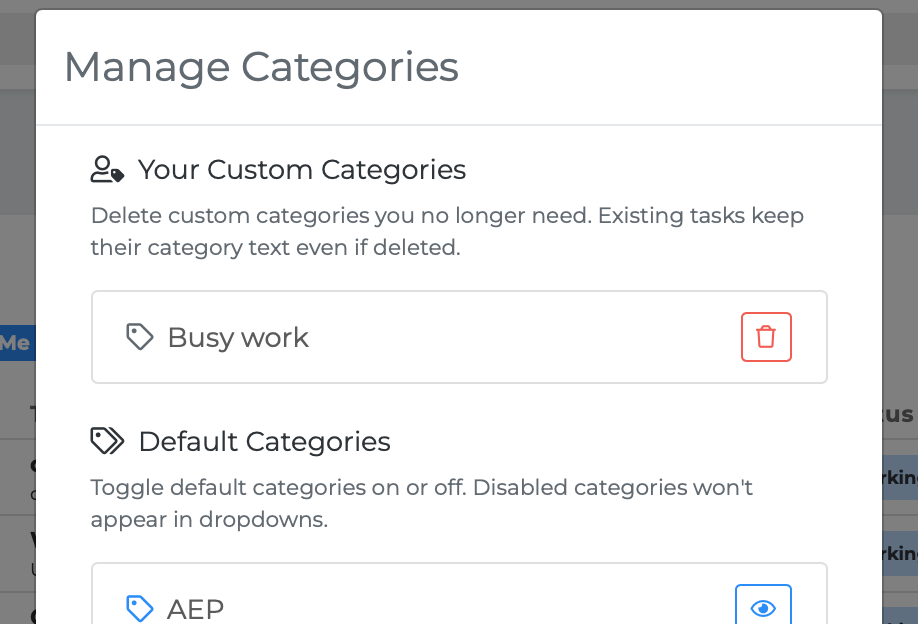
Your custom categories appear in the "Your Custom Categories" section at the top.
New categories created from task forms also appear here.
From the task editor:
Open a task and click "Edit Details."
In the Category dropdown, type a new name that does not match any existing category.
The system creates the custom category automatically when you save.
Managing Categories
Click the tags icon in the Tasks toolbar to open the Manage Categories modal. The modal has two sections:
Your Custom Categories — Lists all categories you have created. Each one has a delete button (trash icon) to remove it. Deleting a custom category does not remove it from existing tasks — those tasks keep the category text, but the category will no longer appear in dropdowns for future use.
If you have not created any custom categories, this section shows "No custom categories yet."
Default Categories — Lists the built-in categories. Each one has a visibility toggle (eye icon). Click the eye to hide a category from dropdowns and filters. Click it again to make it visible. Hidden categories still appear on tasks that already have them assigned.
Where Categories Appear
Categories are used throughout the Tasks feature:
The Category column in List View
Category badges on task cards in Card View
The Category dropdown filter in the toolbar
The Category field in the task editor
Category pills in the My Stats bar
Category cards in the Scoreboard panel
The Category dropdown in Bulk Actions
Tips
Keep your category list manageable. Too many categories can make filtering less useful.
Hide default categories your team does not use to keep dropdowns clean.
Custom categories created from the task editor are shared across your organization.
Deleting a custom category is safe — existing tasks keep their category text.