Tasks — Profile Tasks Panel
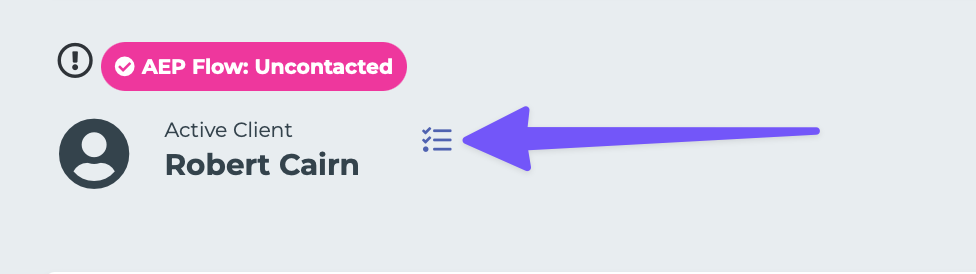
When viewing an individual's profile, a Tasks panel shows all tasks linked to that person. You can also create new tasks directly from the profile.
Where to Find It
Open any individual's profile page. The Tasks panel appears as one of the sections on the profile, showing tasks that have been linked to this person.
Two Tabs
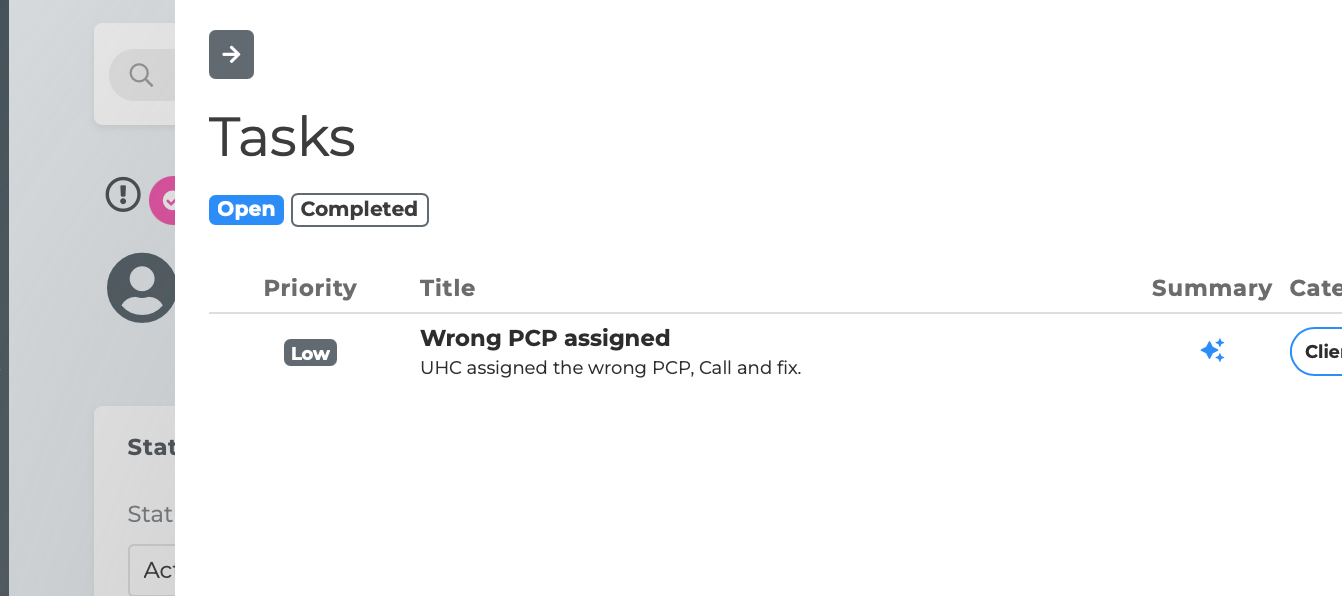
The panel has two tabs:
Open — Shows tasks that are still active (not completed or canceled). The count appears in blue next to the tab name.
Completed — Shows tasks that have been finished. The count appears in green.
Tasks are sorted by deadline, with the most urgent first.
Viewing Tasks
Tasks appear in a compact table format within the panel. Click any task to open it in a side panel on the right, where you can view and edit all details using the full Task Editor.
The editor panel expands to accommodate both the profile content and the task details.
Creating a Task from a Profile
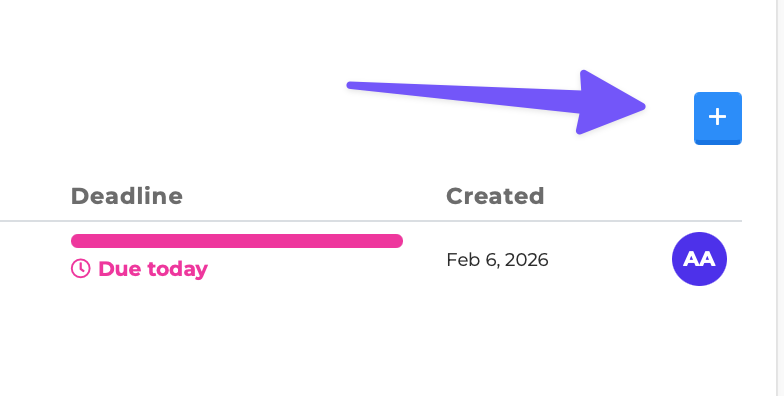
Click the "+" button at the top of the Tasks panel.
A new task form opens, already linked to the individual whose profile you are viewing.
Fill in the task details (title, description, priority, etc.) and save.
The new task automatically appears in the panel and is linked to this person.
AI Notifications from Profile
When you open a task from the Profile Tasks panel, the AI notification feature is available within the editor. You can draft and send an email or SMS to the individual directly from the task — their profile expands to show the notification composer.
See the AI Notification Drafting article for full details on this feature.
Tips
Use the Profile Tasks panel to see all work related to a specific person in one place.
Creating tasks from the profile saves time since the link is set up automatically.
The Completed tab is useful for reviewing the history of work done for an individual.