
Tasks — Dashboard Tasks Widget
The Dashboard includes a Tasks widget that gives you a quick overview of your most time-sensitive tasks without leaving the Dashboard.
Where to Find It
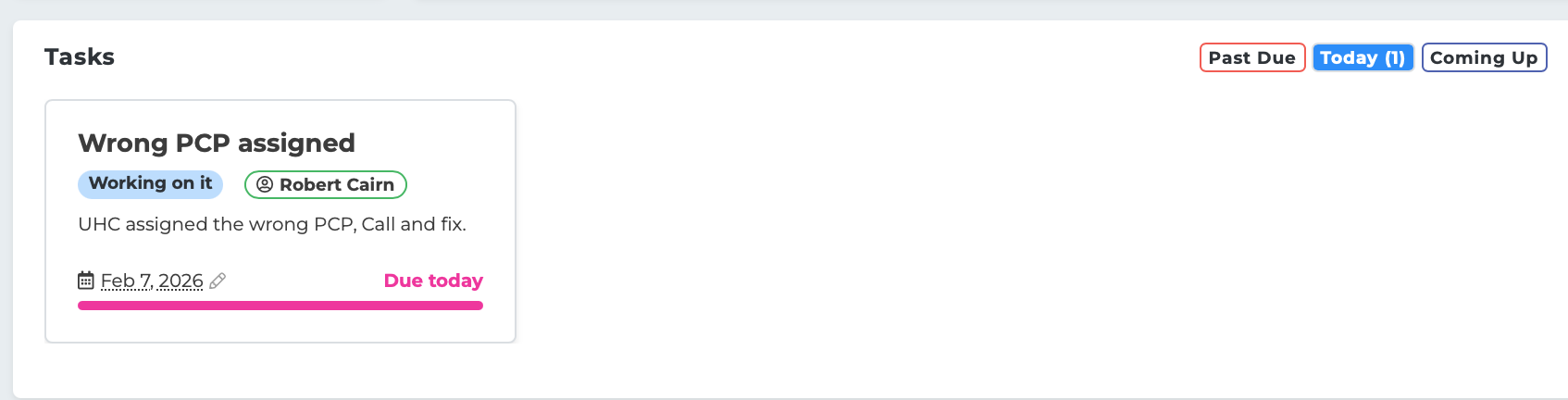
The Tasks widget appears on your Dashboard page. It shows tasks that are assigned to you and are still open.
Three Tabs
The widget has three tabs, each focusing on a different time window:
Past Due — Shows tasks where the deadline has already passed. The count appears in red next to the tab name (e.g., "Past Due (3)"). Tasks are sorted with the most recently overdue first.
Today — Shows tasks that are due today. This is the default tab when you open the Dashboard. The count appears in blue. Tasks are sorted by deadline.
Coming Up — Shows tasks with deadlines in the future. The count appears in teal. Tasks are sorted by earliest deadline first so you can see what is approaching.
Task Cards
Each tab displays tasks as compact horizontal cards that scroll left and right. Each card shows the key details: title, priority, status, deadline, and assignee.
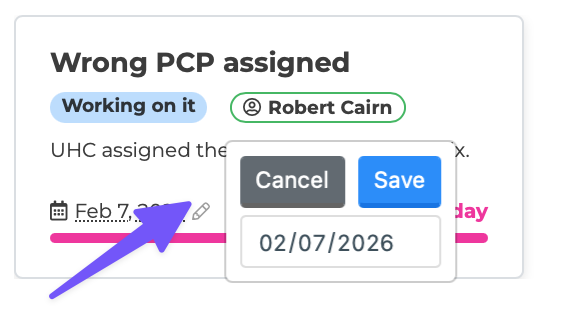
You can change a task's deadline directly from the widget by clicking on the deadline area, which opens an inline date picker.
Empty States
If a tab has no tasks, it shows a helpful message:
Past Due: "No overdue tasks — nice work!"
Today: "Nothing due today — all clear!"
Coming Up: "No upcoming deadlines on the horizon."
Navigating to Tasks
Click on any task card to navigate to the full Tasks page with that task opened in the editor. This lets you quickly jump from a high-level overview to the detailed view.
Tips
Check the Dashboard widget at the start of your day to see what is overdue and what is due today.
Use the inline date picker on cards to quickly reschedule tasks without leaving the Dashboard.
The Past Due tab is a good reminder to follow up on tasks that slipped past their deadline.