
Tasks — Exporting Tasks
You can export your current task list to a CSV file for use in spreadsheets, reports, or other tools.
How to Export
Apply any filters you want (status, priority, category, etc.) to narrow down the tasks you need.
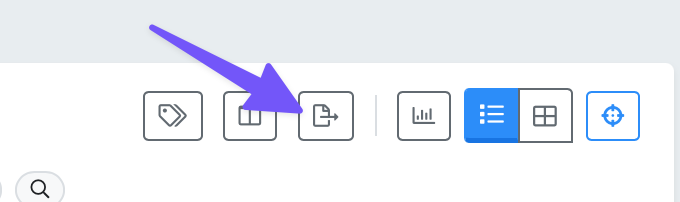
Click the export icon in the toolbar (it looks like a file with an arrow).
A CSV file downloads to your computer automatically.
What Gets Exported
The export includes all tasks that match your current filters and search criteria. If you have no filters applied, all tasks visible in your current view are exported.
The CSV file includes the standard task fields such as title, description, status, priority, category, deadline, assignee, creator, and dates.
Tips
Filter before exporting to get exactly the data you need. For example, filter to "Completed" status and a specific date range to export a report of finished tasks.
The export respects your current view filter (Assigned to Me, All Tasks, etc.), so make sure you are in the right view before exporting.
Open the CSV in Excel, Google Sheets, or any spreadsheet application for further analysis.