Tasks — Scoreboard and Stats
The Tasks page includes stat bars and a scoreboard to help you track workload at a glance. These provide a quick summary of task counts, deadlines, and team distribution.
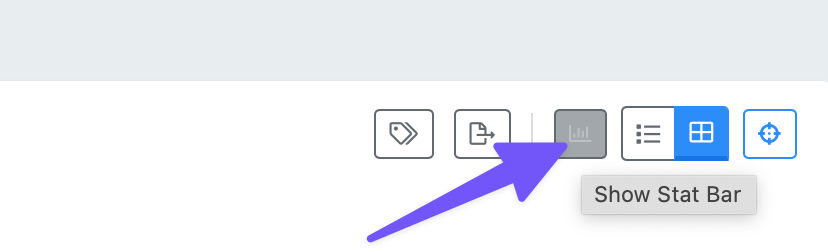
Toggling the Stat Bar
Click the chart icon in the toolbar to show or hide the stat bar. Your preference is saved between sessions.
My Stats
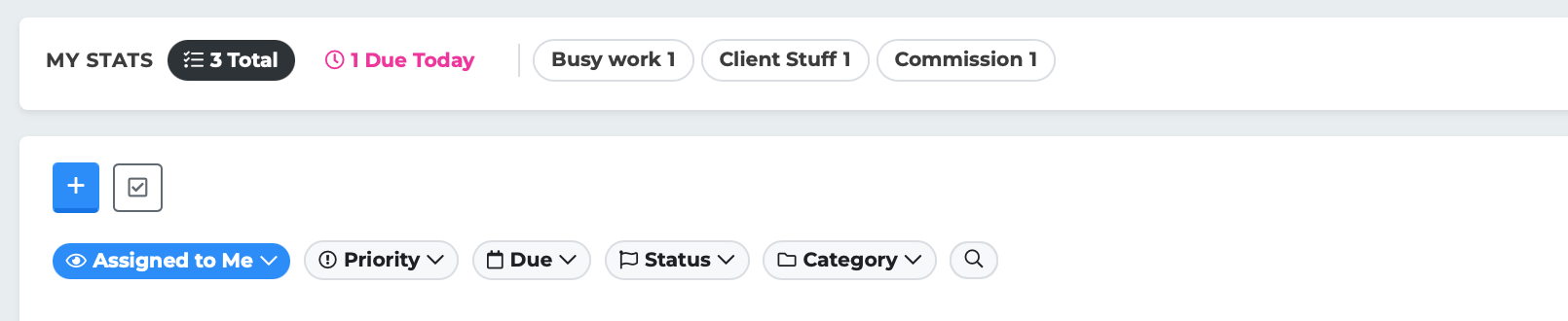
The My Stats bar shows your personal task metrics in a horizontal row of badges.
From left to right:
Total — The total number of open tasks assigned to you. Shown with a tasks icon and a dark badge.
Overdue — The number of tasks past their deadline. Shown with a warning triangle icon and a red badge. This only appears if you have overdue tasks.
Due Today — The number of tasks due today. Shown with a clock icon and a magenta badge. This only appears if you have tasks due today.
After these counts, a vertical divider separates the summary from your category breakdown. Each category you have tasks in appears as a pill showing the category name and count. If a category has overdue tasks, a red exclamation icon appears next to it.
Clicking any badge filters the task list to show only those matching tasks.
If you have no open tasks, the bar displays "No open tasks assigned to you."
Org Stats
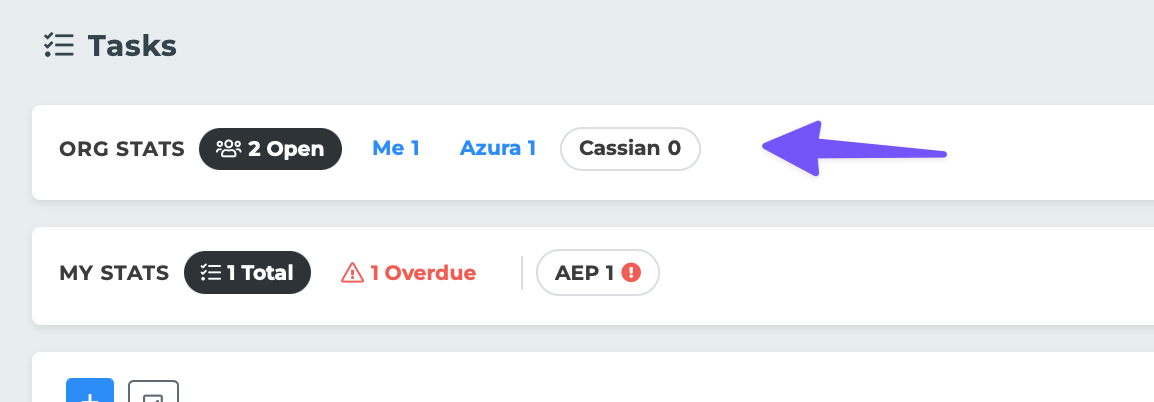
The Org Stats bar shows task distribution across your team.
It displays:
Open — The total number of open tasks across all team members. Shown with a people icon and a dark badge.
Team member pills — Each person with open tasks gets a pill showing their first name and task count. Your own name appears as "Me." Staff members are indicated with a headset icon.
Clicking a team member's pill filters the task list to show only their assigned tasks.
Tips
Use Org Stats to quickly see which team members have the most tasks and may need help.
Use My Stats to keep an eye on your overdue and due-today counts throughout the day.
Click the category pills in My Stats to quickly focus on one area of work.
The scoreboard cards are especially useful for managers reviewing workload distribution.