
Tasks — AI Notification Drafting
When a task is linked to an individual, you can use the AI-powered notification feature to quickly draft and send an email or SMS update to that person. The system uses the task's comment history to generate a contextual message.
When This Feature Appears
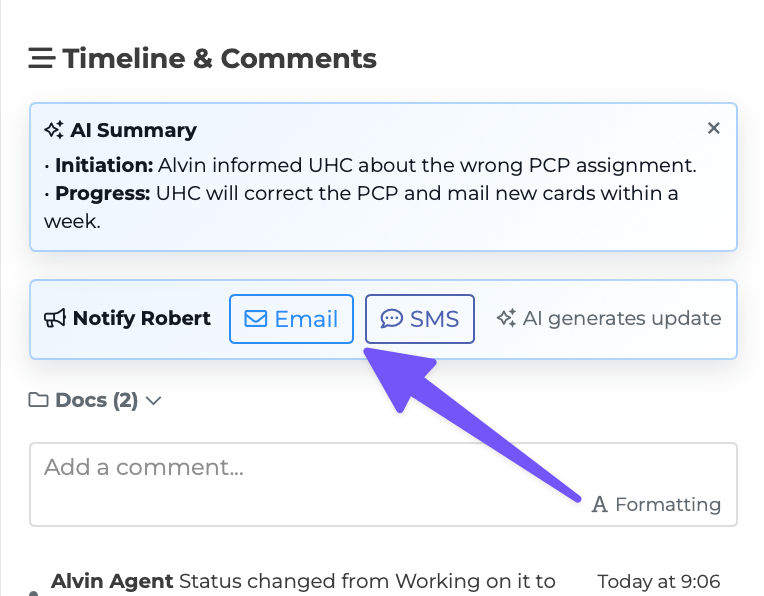
The AI notification card appears in the task editor when all of the following are true:
The task is linked to an individual's profile.
The linked individual has contact information on file (email or phone).
The task has at least one comment in the timeline.
The card appears with the heading "Notify [First Name]" and a bullhorn icon.
Sending an Email Notification
Open a task that is linked to an individual.
Find the "Notify" card in the editor panel.
Click the "Email" button.
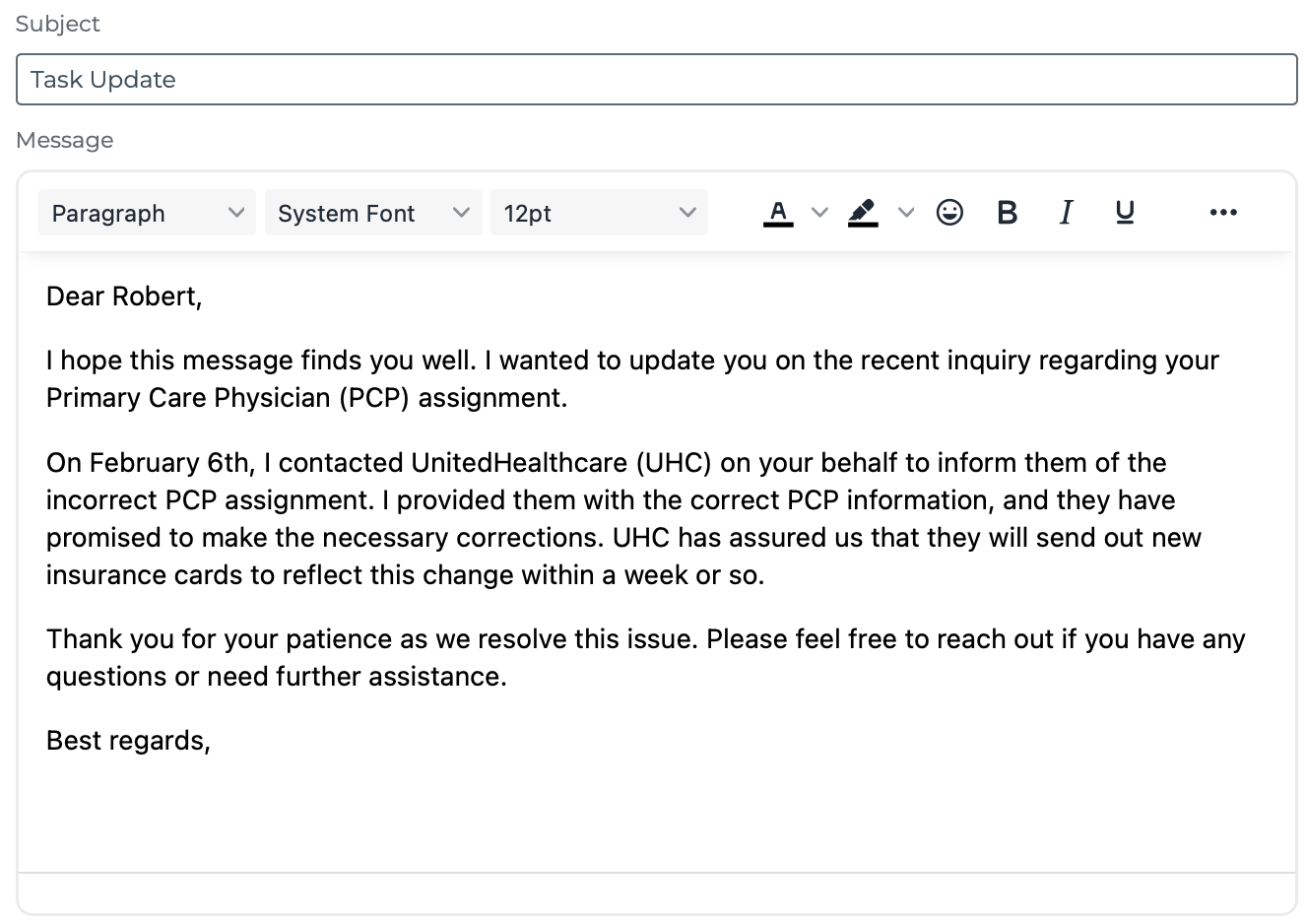
The system reads through the task's comment history and generates a professional email with:
- A greeting using the individual's name - A summary of the task and recent activity - Suggested next steps - A professional closing
The individual's profile opens with the drafted email pre-filled and ready for your review.
Review and edit the message as needed, then send.
A system note is logged in the task timeline recording that an email notification was sent.
Sending an SMS Notification
Open a task that is linked to an individual.
Find the "Notify" card in the editor panel.
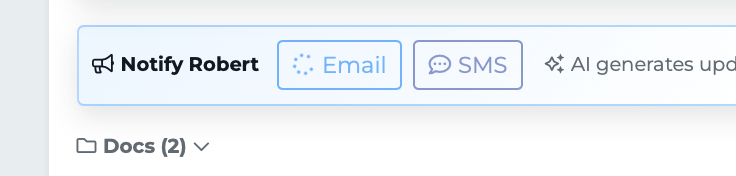
Click the "SMS" button.
The system generates a short, conversational text message (limited to 300 characters) based on the task's comment history.
The individual's profile opens with the drafted SMS pre-filled and ready for your review.
Review and edit the message as needed, then send.
A system note is logged in the task timeline recording that an SMS notification was sent.
What the AI Reads
The notification draft is based on the comments in the task timeline. System events (like status changes and assignment updates) are not included. The more detailed your comments are, the better the AI can summarize the situation for the recipient.
Tips
Always review the AI-generated message before sending. The draft is a starting point — adjust the tone or add details as needed.
Use this feature to keep individuals informed about task progress without manually writing a message from scratch.
If the Email or SMS button does not appear, check that the linked individual has the appropriate contact information on their profile.
The AI generates different styles for each channel: emails are formal and structured, SMS messages are brief and conversational.