
Tasks — Participants and Permissions
Every task has participants — the people involved with it. Each participant has a role that determines what they can do.
The Four Roles
Creator — The person who created the task. Shown with a crown icon. The creator always has full edit access and cannot be removed from the task.
Assignee — The person responsible for completing the task. Shown with a check-user icon. The assignee has full edit access. To change the assignee, use the "Assigned to" dropdown in the task editor — you cannot remove them directly from the participants list.
Collaborator — Someone added to help with the task. Shown with an edit-user icon. Collaborators have full edit access, meaning they can change fields, add comments, and update the status. The description "Can edit" appears next to their role.
Watcher — Someone who wants to follow the task without making changes. Shown with an eye icon. Watchers have view-only access. They can see all task details and the timeline but cannot edit fields, change the status, or post comments. The description "View only" appears next to their role.
Viewing Participants
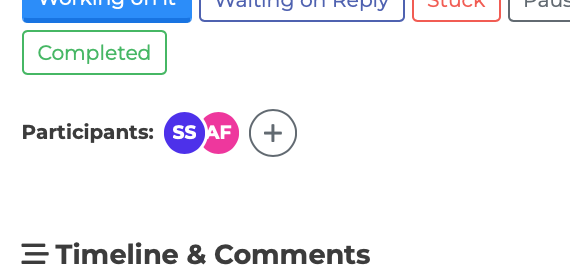
Participants appear as overlapping colored circles near the top of the task editor. Each circle shows the person's initials.
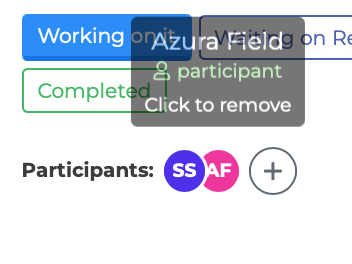
Hover over any circle to see a tooltip with the person's full name, their role, and a short description of what the role allows.
If there are more than five participants, a "+N" indicator appears showing how many additional people are involved.
Adding a Participant
To add someone to a task:
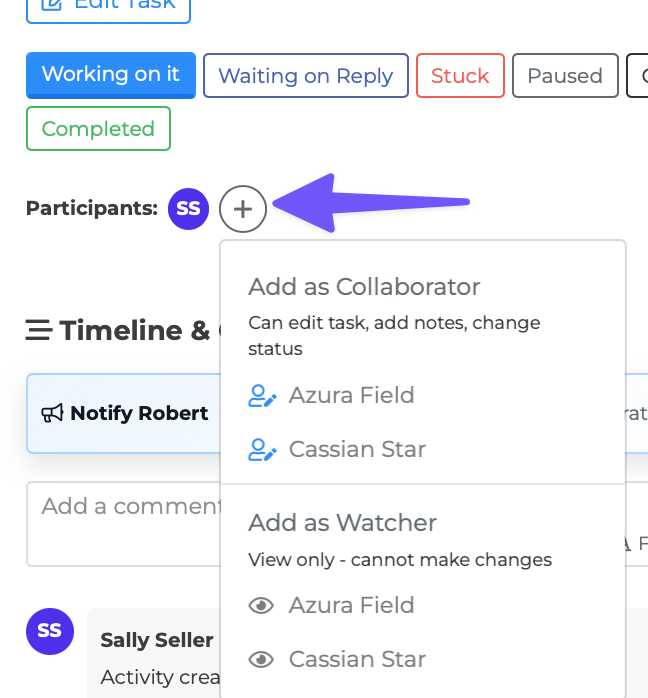
Click the "+" circle at the end of the participant list.
A dropdown appears with two sections:
- Add as Collaborator — Lists available people. Adding someone here gives them full edit access. - Add as Watcher — Lists the same people. Adding someone here gives them view-only access.
Click a person's name under the appropriate section.
The person is added immediately and their avatar circle appears in the participant list.
Removing a Participant
To remove someone from a task:
Click on their avatar circle.
A dropdown appears with a "Remove" option.
Click "Remove" to take them off the task.
If you click your own avatar, the option reads "Leave" instead of "Remove."
Note: The Creator cannot be removed. The Assignee cannot be removed directly — to change the assignee, use the "Assigned to" dropdown in the task editor's edit form.
Permission Summary
What each role can do:
Creator and Assignee:
Edit all task fields (title, description, priority, status, deadline, etc.)
Add, edit, and delete their own comments
Attach and detach documents
Use Quick Status buttons
Delete the task
Collaborator:
Everything the Creator and Assignee can do
Watcher:
View all task details and the timeline
Cannot edit fields, post comments, or change status
Sees a "Viewing only" indicator instead of edit controls
Non-participants with admin access:
Full edit access (same as Creator/Assignee)
Tips
Add colleagues as Watchers when they need to stay informed but should not make changes.
Add colleagues as Collaborators when you need them to actively help with the task.
You can see who is involved with a task at a glance from the overlapping avatar circles.