Tasks — Focus Mode
Focus Mode is a guided workflow that helps you work through your tasks one at a time. It removes distractions by showing a single task on screen with a built-in timer and break system.
Starting Focus Mode
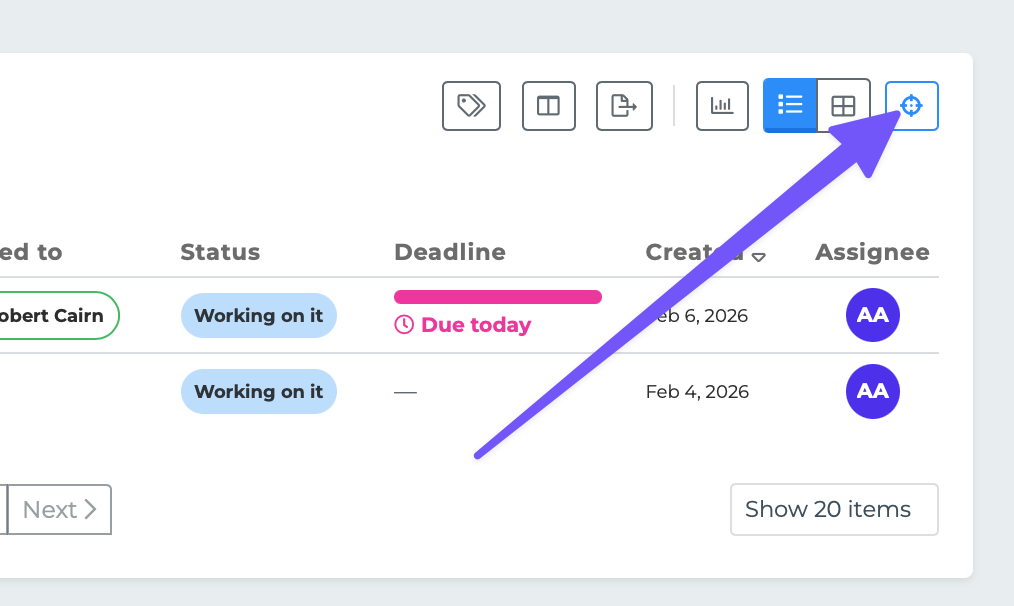
Click the crosshairs icon in the Tasks toolbar to enter Focus Mode.
If you have a saved session from a previous visit, you will see the Resume screen. Otherwise, you go straight to the setup screen.
Resuming a Saved Session
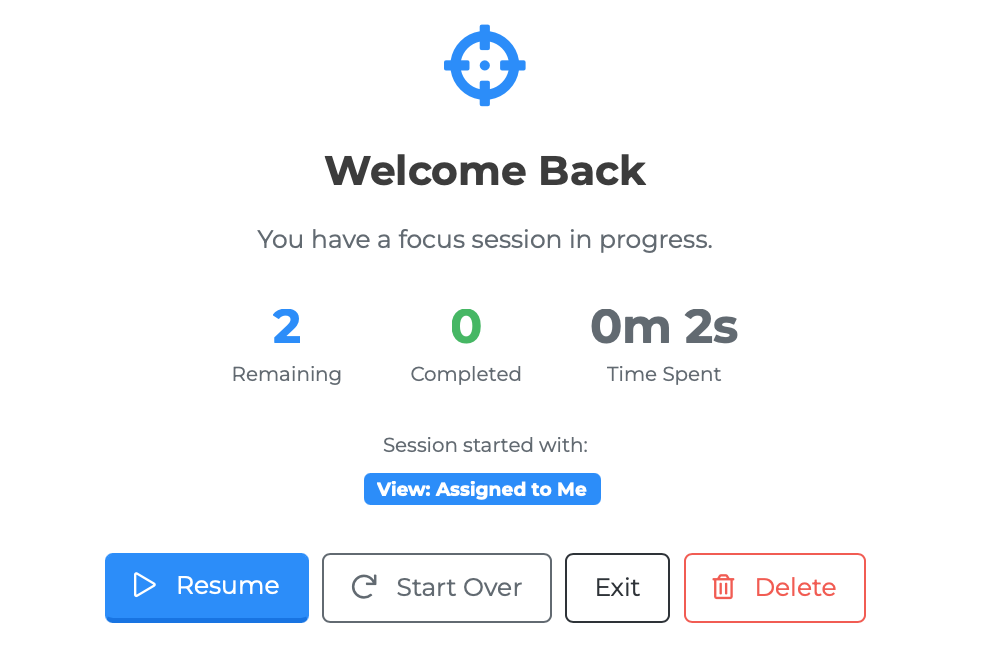
If you left a Focus Mode session without finishing, the system saves your progress automatically. When you return, you will see:
A "Welcome Back" message
Your session stats: tasks remaining, tasks completed, and time spent
The filters that were active when you started
You have four options:
Resume — Pick up where you left off.
Start Over — Discard the saved session and begin fresh.
Exit — Leave Focus Mode without deleting the session (you can come back later).
Delete — Permanently remove the saved session.
Setting Up a New Session
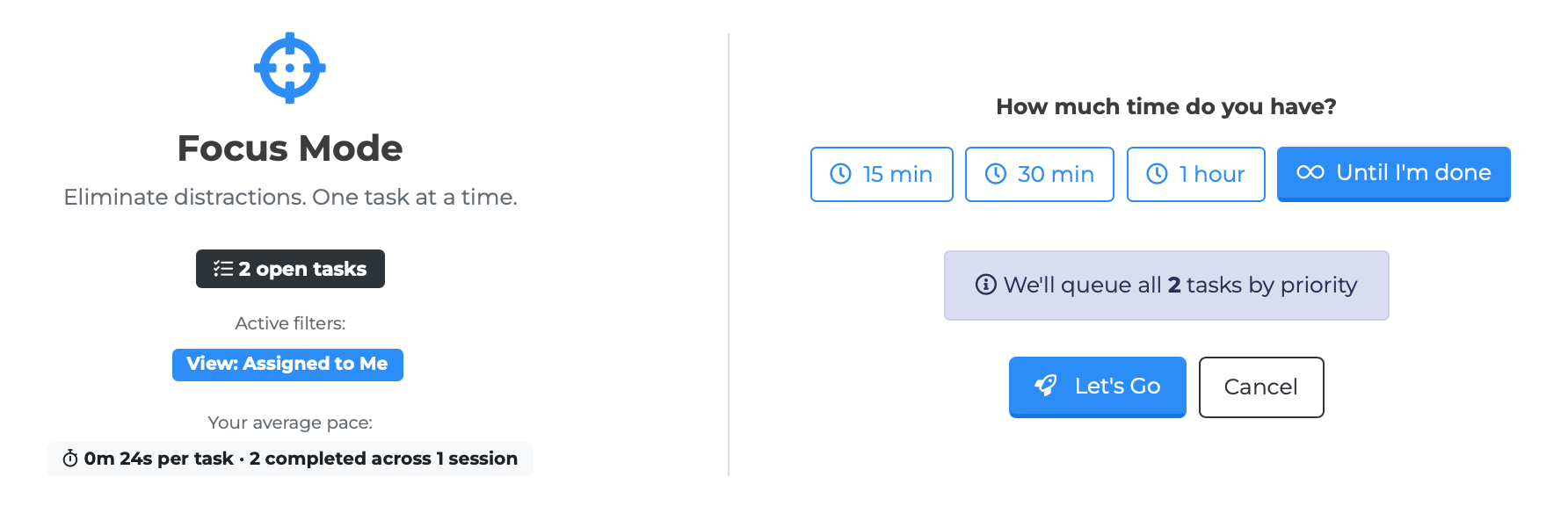
The setup screen shows two sections:
Left side:
The total number of open tasks in your current filtered view
The active filter pills (so you can see which tasks are in the queue)
Your rolling average time per task from previous sessions
Right side — Choose a time budget:
15 minutes
30 minutes
60 minutes
Until I'm done (no time limit)
Below the time options, you can see a preview of your queue showing how many tasks fit within your chosen time budget (based on your rolling average).
Click "Let's Go" to start.
How the Queue Is Sorted
Focus Mode automatically prioritizes your tasks using a scoring system. Tasks are ranked by these factors:
Overdue tasks get the highest priority
Tasks due today come next
Tasks due this week follow
High-priority tasks score higher than Medium, which score higher than Low
Tasks linked to an individual get a small boost
Tasks with certain statuses are deprioritized: Waiting on Reply, Stuck, and Paused are pushed lower in the queue
Older tasks gradually score higher over time (up to a cap)
You do not need to manage this ranking manually. Focus Mode handles it so the most important tasks come first.
Working on Tasks
The Work screen shows:
Header area:
A "Focus" badge with the current task number out of the total (e.g., "2 of 8")
A progress bar showing how far through the queue you are
A session timer showing total elapsed time
A per-task timer showing how long you have been on the current task
Completed and skipped counts
Action bar:
The current task's title
A "Skip" button to move past this task without completing it
A "Complete & Next" button to mark the task done and move to the next one
Below the action bar, the full Task Editor loads so you can view and edit all task details, add comments, and work normally.
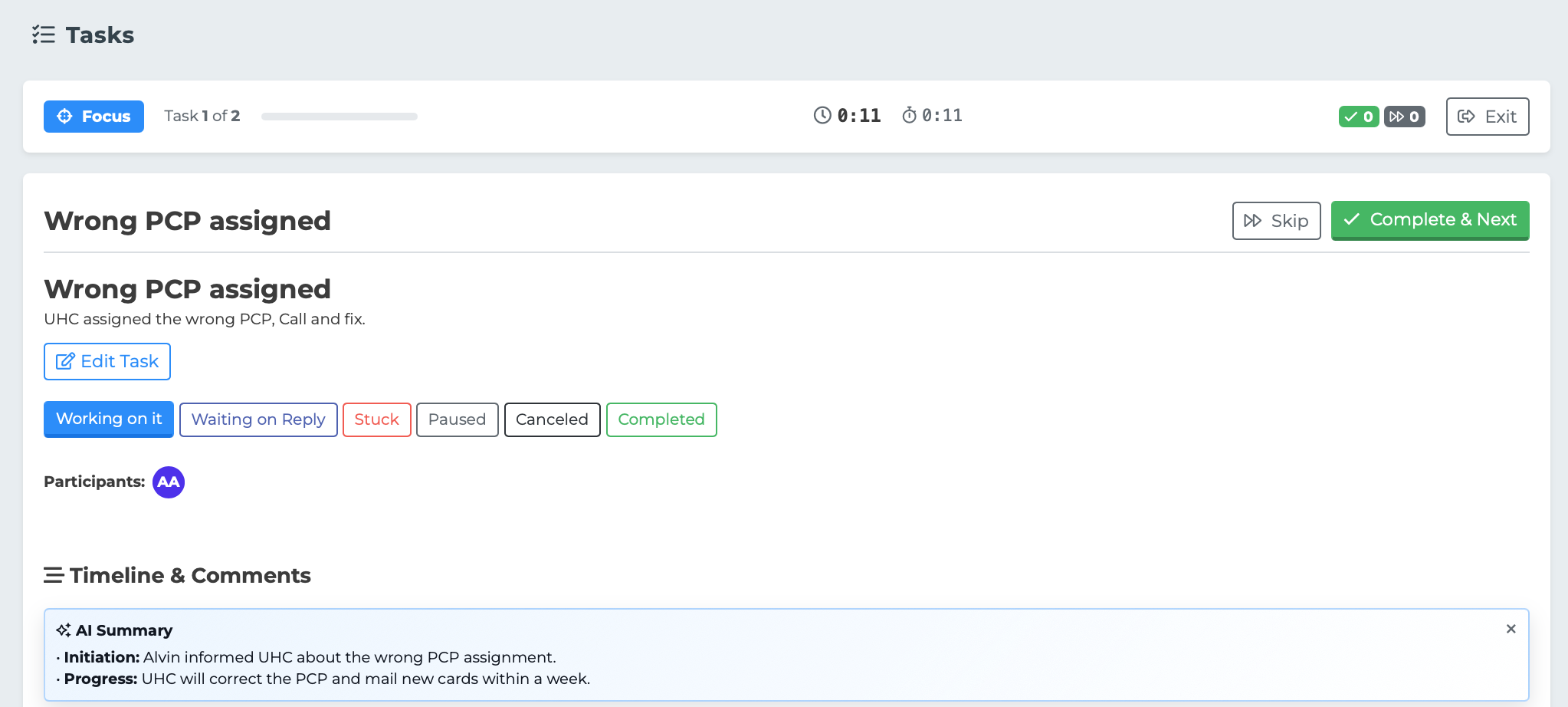
At any point, click "Exit" in the header to save your session and leave. You can resume later.
Taking Breaks
Focus Mode includes a built-in Pomodoro-style break system. After 25 minutes of continuous work, the system pauses and shows a break screen.
The break screen displays:
A coffee cup icon
The message "Take a Break — You've been focused for 25 minutes. Rest your eyes for a moment."
A 5-minute countdown timer with a progress bar
A "Skip Break" button if you want to keep working
The break ends automatically after 5 minutes and returns you to the next task. Breaks only trigger for sessions with a time budget of 30 minutes or longer.
Completing a Session
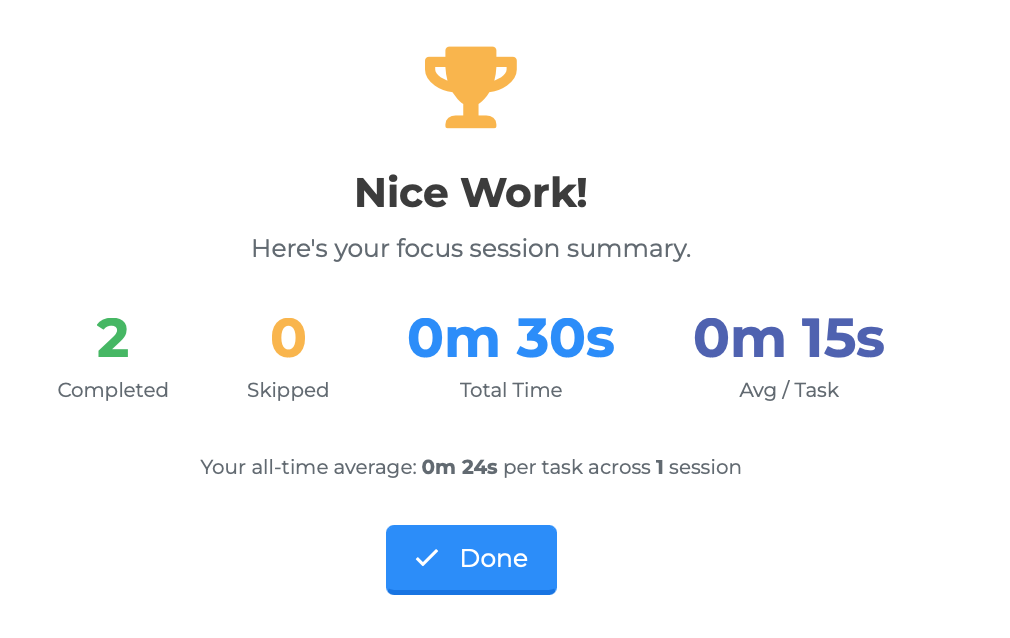
When you finish all tasks in your queue or your time budget expires, the Recap screen appears:
A trophy icon with "Nice Work!"
Session stats: tasks completed, tasks skipped, total time, and average time per task
Your all-time average for comparison
Click "Done" to exit Focus Mode and return to the main Tasks page.
Session Persistence
Focus Mode saves your progress automatically every 30 seconds. If you close the browser, navigate away, or lose your connection, your session is preserved. The next time you enter Focus Mode, you can resume right where you left off.
The saved session includes your queue, your position, completed/skipped counts, and all timer values.
Tips
Use filters before entering Focus Mode to narrow the queue. For example, filter to "High" priority first to tackle your most urgent tasks.
The notification badge on the Focus Mode button reminds you when you have a saved session waiting.
If your session feels too long, choose a shorter time budget. You can always start another session after.
The rolling average shown on the setup screen improves over time as you complete more sessions.