Tasks — Page Layout
The Tasks page is your central hub for managing all tasks across your organization. This article walks through the main areas of the page.
Opening the Tasks Page
Navigate to Tasks from the main menu. The page loads with your default view showing tasks assigned to you, sorted by deadline.
Toolbar
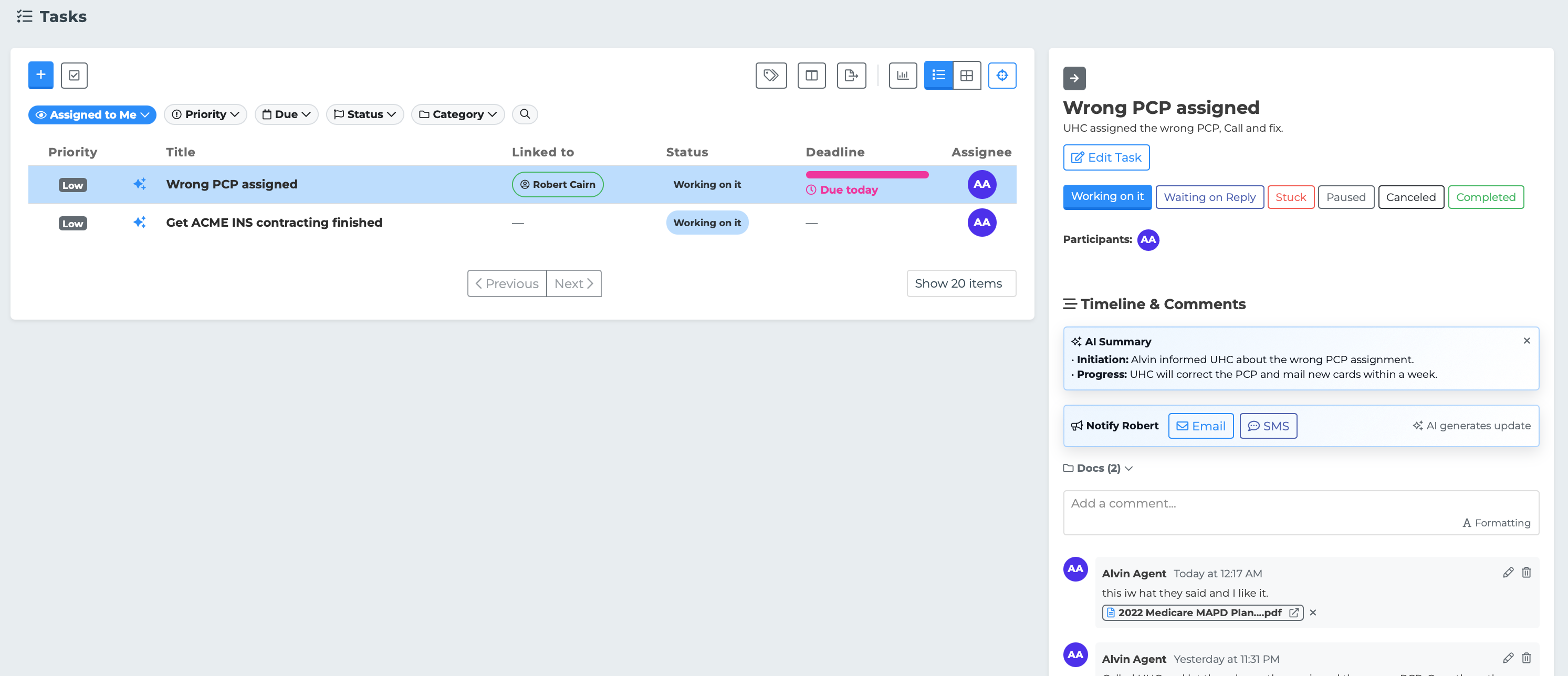
The toolbar runs across the top of the page and provides quick access to key actions.
From left to right:
Create Task (+) — Opens a form to create a new task.
Bulk Select — Enters multi-select mode so you can apply changes to several tasks at once. See the Bulk Actions article for details.
On the right side:
Manage Categories — Opens the category manager where you can create custom categories or hide default ones.
Column Settings — Lets you choose which columns appear in the table. Only visible in List View.
Export — Downloads your current filtered task list as a CSV file.
Toggle Stat Bar — Shows or hides the statistics bar at the top of the page.
View Mode — Switch between List View (table) and Card View (visual cards).
Focus Mode — Enter Focus Mode to work through tasks one at a time with a guided workflow. A notification badge appears here if you have a saved session in progress.
On smaller screens, some toolbar buttons are hidden to save space. The Manage Categories button, for example, is only visible on medium and larger screens.
Stat Bars
Below the toolbar, you can display statistics about your tasks. There are two views:
My Stats — Shows your personal task counts: total tasks, overdue tasks, tasks due today, and a breakdown by category.
Org Stats — Shows task counts across the organization, broken down by team member.
Toggle the stat bar on or off using the chart icon in the toolbar. See the Scoreboard and Stats article for a full breakdown.

Task Table
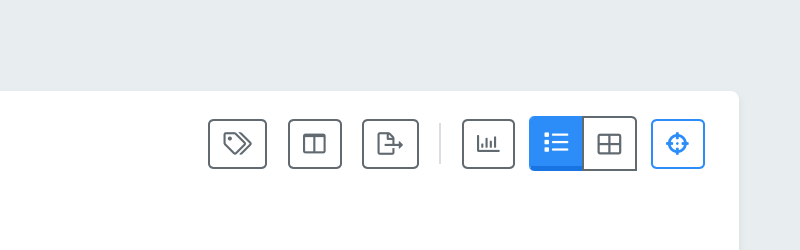
The main area of the page displays your tasks in a table (List View) or as visual cards (Card View).
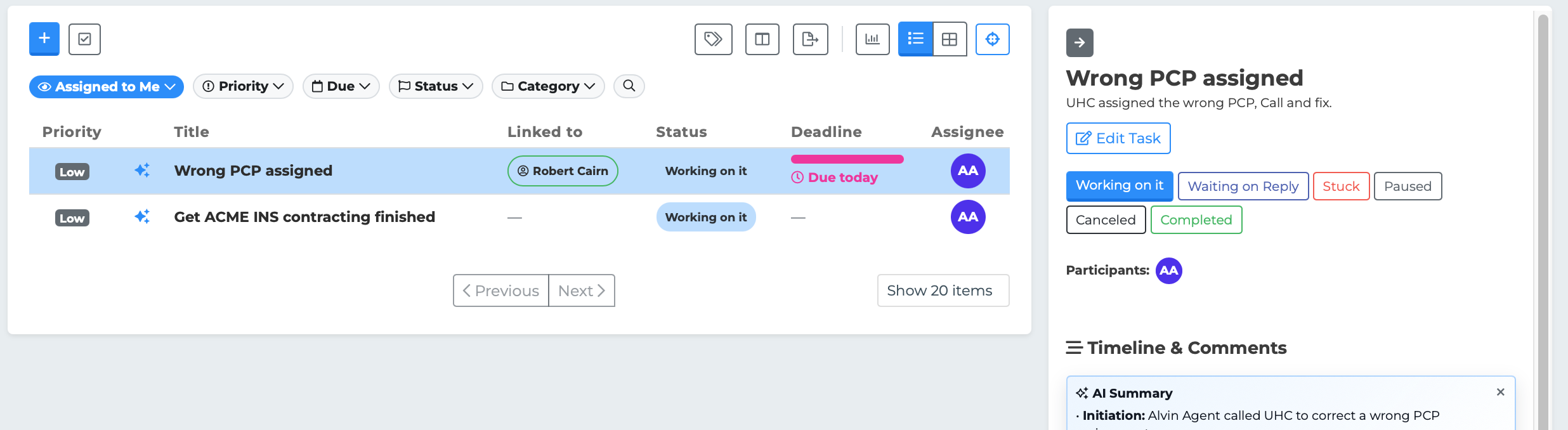
In List View, the table shows columns such as Priority, Title, Summary, Category, Linked To, Status, Deadline, Created, and Assignee. You can customize which columns are visible using Column Settings.
Clicking a row opens the Task Editor panel on the right side of the page. When the editor is open, the table narrows and some columns (Category, Created) are hidden automatically to make room.
Sorting
Click any sortable column header to sort by that column. Click again to reverse the direction. The default sort is by Deadline in ascending order (earliest first).
Sortable columns: Priority, Title, Category, Status, Deadline, and Created.
Pagination
At the bottom of the table, pagination controls let you navigate through results.
Previous and Next buttons move between pages.
A dropdown lets you choose how many tasks to display per page: 10, 20, 50, or 100 items.
Deep Links
When you open a task, the page URL updates to include that task's ID. You can copy and share this URL with a colleague — when they open it, the same task will automatically open in their editor panel.