
Creating and Managing API Tokens
API tokens allow third-party applications and integrations to securely access your MedicarePro account without sharing your password. This guide explains how to create, manage, and use API tokens.
NOTE: For third-party vendors where MedicarePRO has a direct integration, you will want to set that up from the Integration tab in Settings.
Creating a New API Token
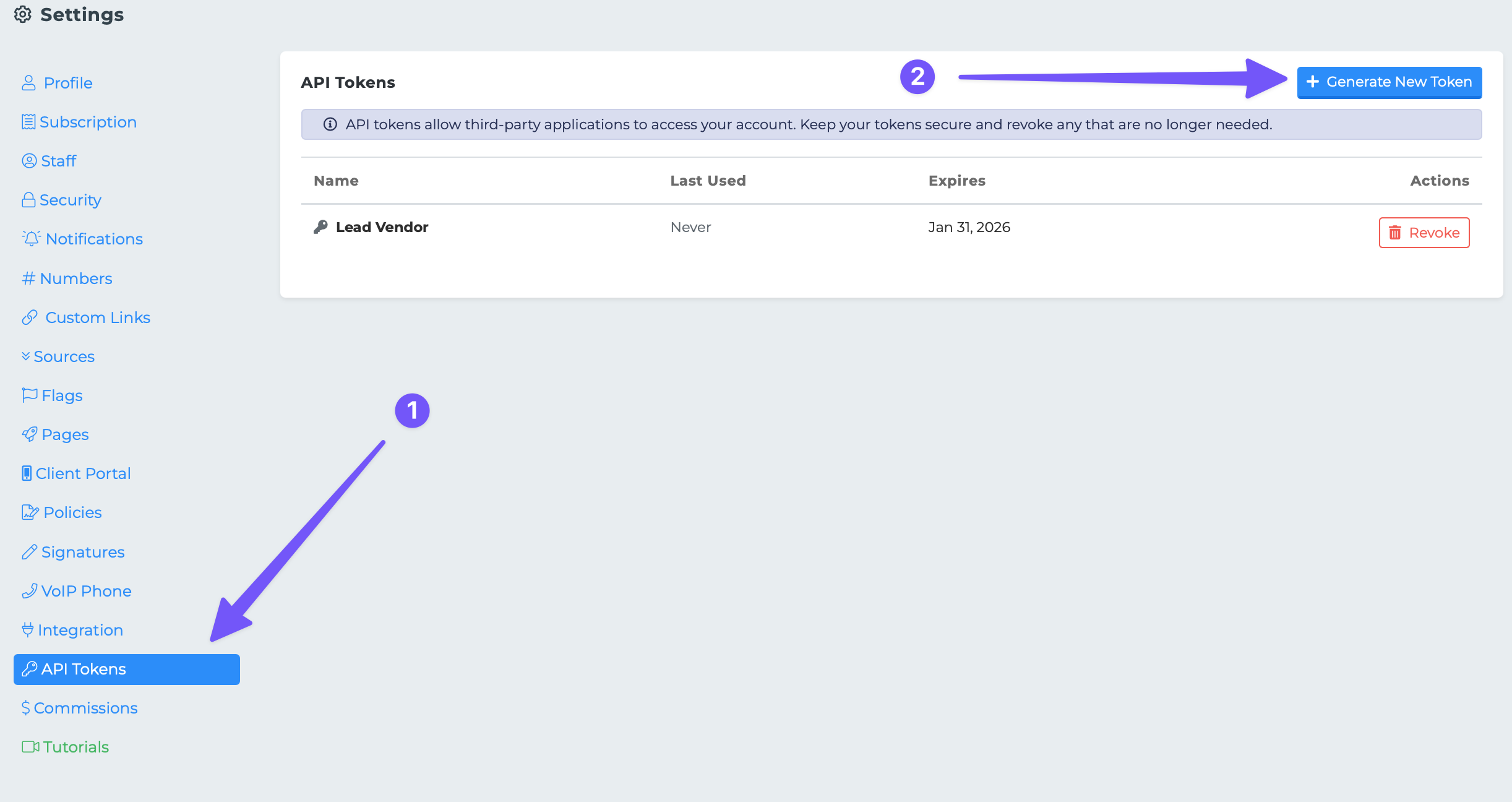
Navigate to Settings > API Tokens
Click the Generate New Token button
Enter a descriptive Token Name (e.g., "Zapier Integration" or "Custom CRM Sync")
Optional: Set an Expiration Date for added security
Leave blank if the token should never expire
We recommend setting an expiry for tokens used in temporary or testing scenarios
Click Generate Token
⚠️ Important: Copy your token immediately after creation. For security reasons, you will not be able to view the full token again. If you lose it, you'll need to revoke the token and create a new one.
Using Your API Token
Include your token in API requests using the Authorization header:
Authorization: Bearer your-token-here
Managing Existing Tokens
The API Tokens panel displays all your tokens with the following information:
Column | Description |
|---|---|
Name | The descriptive name you assigned to the token |
Last Used | When the token was last used to make an API call (or "Never" if unused) |
Expires | The expiration date, if set (or "Never" if no expiry) |
Status Indicators
Expired (red badge) — Token has expired and can no longer be used
Expires in Xd (yellow badge) — Token will expire within 7 days
Revoking a Token
If a token is compromised or no longer needed:
Locate the token in your API Tokens list
Click the Revoke button
Confirm the action
⚠️ Revoking a token is immediate and permanent. Any integrations using that token will stop working.
Best Practices
Use descriptive names — Name tokens after their purpose (e.g., "Mailchimp Sync") so you can identify them later
Set expiration dates — For temporary integrations or testing, always set an expiry
Revoke unused tokens — Regularly review your tokens and revoke any that show "Never" under Last Used
One token per integration — Create separate tokens for each integration so you can revoke access individually
Keep tokens secure — Never share tokens via email or commit them to source code
Limits
Each user can have a maximum of 10 active API tokens. If you've reached the limit, revoke an unused token before creating a new one.
Troubleshooting
"API token has expired"
Your token has passed its expiration date. Create a new token and update your integration.
"Invalid access token provided"
The token is incorrect or has been revoked. Verify you're using the correct token or generate a new one.
"Maximum number of API tokens reached"
You've hit the 10-token limit. Revoke an existing token to create a new one.